2User Guide
2.1Overview
To load the package, simply put
\usepackage{pgfgantt}
into the document preamble.
Compare the following code, which demonstrates some commands provided by pgfgantt, to the output it produces:
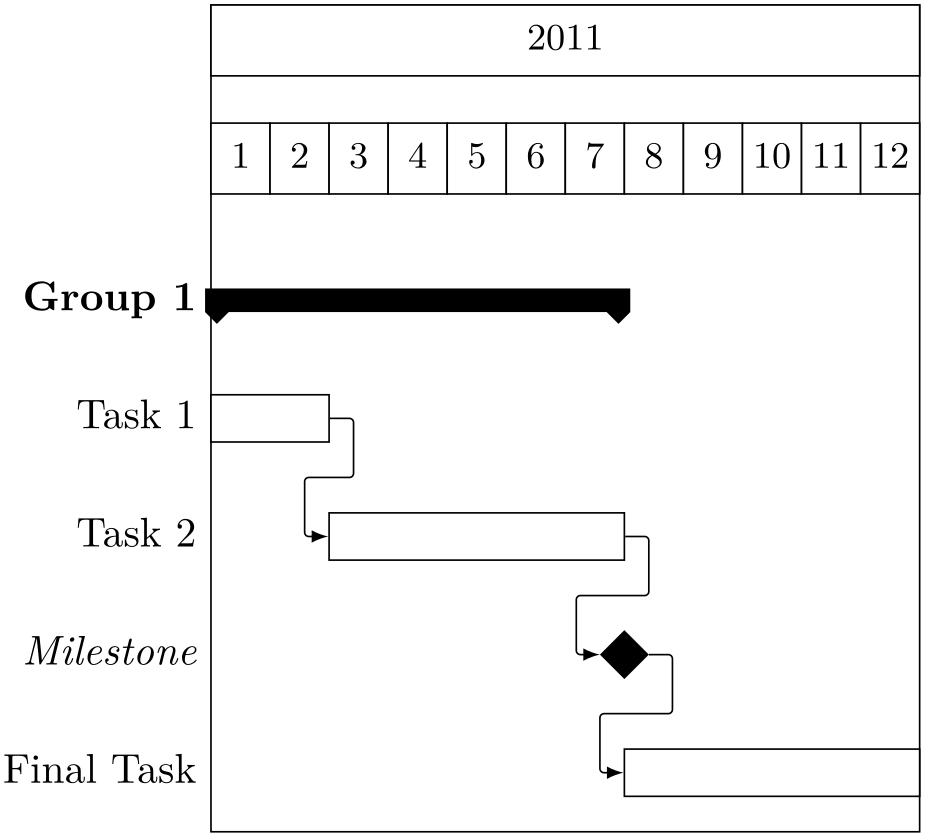
\begin{ganttchart}{1}{12}
  \gantttitle{2011}{12} \\
  \gantttitlelist{1,...,12}{1} \\
  \ganttgroup{Group 1}{1}{7} \\
  \ganttbar{Task 1}{1}{2} \\
  \ganttlinkedbar{Task 2}{3}{7} \ganttnewline
  \ganttmilestone{Milestone}{7} \ganttnewline
  \ganttbar{Final Task}{8}{12}
  \ganttlink{elem2}{elem3}
  \ganttlink{elem3}{elem4}
\end{ganttchart}
2.2Specifying Keys
Keys (sometimes called options) modify the output from pgfgantt’s commands. You may specify a key in two ways: (1) Pass it to the optional argument present in each command, e. g.
\ganttbar[bar height=.6]{Task 1}{1}{2}
This locally changes a key for the element(s) drawn by that command. (2) Alternatively, specify a key by the \ganttset \ganttset{⟨key=value list⟩} macro, which sets its keys within the current TeX group:
\ganttset{bar height=.6}
Since pgfgantt uses the pgfkeys package for key management, all its keys reside in the /pgfgantt/ path. However, if you set your keys by one of the methods explained above, this path is automatically prepended to each key.
2.3The Canvas
Let us have a look at the basic anatomy of a Gantt chart and define some common terms. Each chart consists of several lines, which may contain one or more title elements (at the top) or chart elements (such as bars, groups and milestones). From left to right, the chart is divided into an integer number of time slots that represent the basic \(x\)-unit.
The ganttchartganttchart environment draws a single Gantt chart:
\begin{ganttchart}`\oarg{options}\marg{start tss}\marg{end tss}'
  `$\cdots$'
\end{ganttchart}
The environment has one optional argument, which specifies the ⟨options⟩ for the chart, and two mandatory arguments, which indicate the start and end time slot specifier. Although you will often put a ganttchart into a tikzpicture environment, you may actually use this environment on its own. pgfgantt checks whether a chart is surrounded by a tikzpicture and adds this environment if necessary.
-
/pgfgantt/time slot format =⟨format⟩simple 
-
• simple – positive integers (the single format used by pgfgantt prior to v4.0). See also the time slot format/start date key below.
Examples: 1, 3, 24 -
• isodate – dates in ISO-standard format (yyyy-mm-dd). In this format and any other, you may omit the leading zero if month or day are less than 10.
Examples: 2013-03-14, 2013-5-1 -
• isodate-yearmonth – ISO-standard dates without days (yyyy-mm). Such dates are automatically converted to the first day of the respective month.
Examples: 2013-03, 2013-5 -
• isodate-year – year only (yyyy). Such dates are automatically converted to the first day of January.
Examples: 2013, 2014 -
• little-endian – Gregorian little-endian, i. e. day–month–year (the common German date format). Valid day/month and month/year separators are the hyphen (-), slash (/) and period (.). If you enter a two-digit year (for example, 13 instead of 2013), it will be completed according to the value of time slot format/base century (see below).
Examples: 14-03-2013, 14/03/13, 14.3.2013 -
• middle-endian – middle-endian, i. e. month–day–year (the common US date format). For valid separators and automatic year completion, see little-endian.
Examples: 03-14-2013, 03/14/13, 3.14.2013 -
• big-endian – Gregorian big-endian, i. e. year–month–day (the ISO”=standard order). For valid separators and automatic year completion, see little-endian.
Examples: 2013-03-14, 13/03/14, 2013.3.14
Sets the ⟨format⟩ of time slot specifiers. A time slot specifier (abbreviated “tss”) denotes a certain time slot along the horizontal axis. pgfgantt defines a range of formats:
Two subkeys of time slot format let you configure pgfgantt’s behavior regarding automatic completion of abbreviated dates:
-
/pgfgantt/time slot format/base century =⟨year⟩2000 
Sets the century for auto-completion of two-digit years (used by the time slot formats little-endian, middle-endian and big-endian). Consequently, default settings convert a year like 13 to 2013.
-
/pgfgantt/time slot format/start date =⟨ISO-standard date⟩2000-01-01 
Numbers denoting time slots in the simple format are internally converted to a date, where 1 is converted to ⟨ISO-standard date⟩, 2 to \(\meta {ISO-standard date} + 1\) etc.
Advanced users may add their own time slot \newgantttimeslotformat formats:
\newgantttimeslotformat`\marg{name}\marg{converter code}'
Defines a new time slot format called ⟨name⟩. The ⟨converter code⟩ must convert the time slot specifier stored in #1 to its corresponding Julian day number (see section 57 of the TikZ manual) and assign this number to the count register #2. The ⟨converter code⟩ is executed within a TeX group, so you may use temporary macros like \@tempa, counts like \@tempcnta etc.
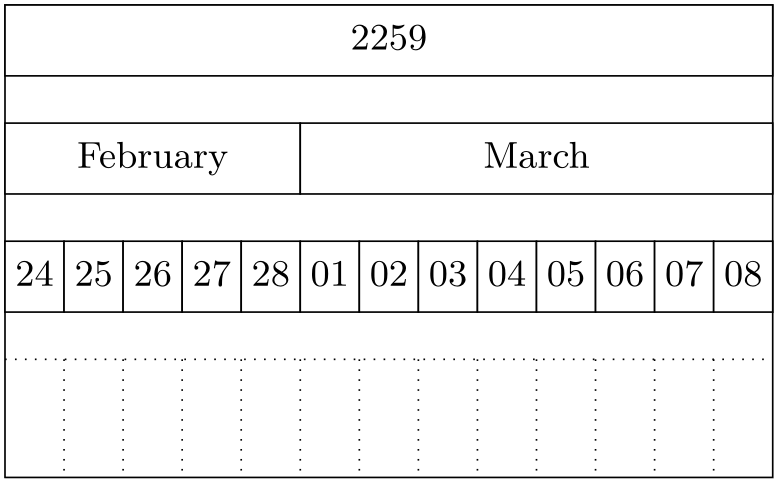
For example, we would like to create a format called stardate, where dates are given as “⟨year⟩.⟨day of year⟩”. Thus, we will enter 24th February 2259 as “2259.55”. To this end, we write the following code:
1 \newgantttimeslotformat{stardate}{%
2   \def\decomposestardate##1.##2\relax{%
3     \def\stardateyear{##1}\def\stardateday{##2}%
4   }%
5   \decomposestardate#1\relax%
6   \pgfcalendardatetojulian{\stardateyear−01−01}{#2}%
7   \advance#2 by−1\relax%
8   \advance#2 by\stardateday\relax%
9 }
10
11 \begin{ganttchart}[
12     hgrid,
13     vgrid,
14     time slot format=stardate
15   ]{2259.55}{2259.67}
16   \gantttitlecalendar{year, month=name, day} \\
17   \end{ganttchart}
The macro \decomposestardate (lines 2–4) has two delimited arguments: The first one is delimited by a period and the second one by \relax. The call in line 5 decomposes the tss stored in #1 and saves the day in \stardateday and the year in \stardateyear. \pgfcalendardatetojulian (section 57.1.1 of the TikZ manual) calculates the Julian date of the first day of \stardateyear and stores it in #2 (line 6). We then subtract 1 from #2 (line 7) and add the \stardateday (line 8).
-
/pgfgantt/canvas ./style=⟨style⟩shape=rectangle, draw, fill=white 
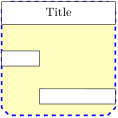
The canvas key changes the appearance of the canvas. ⟨style⟩ is a list of TikZ keys suitable for the ⟨options⟩ of a TikZ node (such as shape=rectangle, fill or draw; see chapter 16 of the TikZ manual). By default, the canvas is a white rectangle with a black frame.
\begin{tikzpicture} % optional
  \begin{ganttchart}[
      canvas/.style=%
        {shape=chamfered rectangle, fill=yellow!25,
        draw=blue, dashed, very thick}
    ]{1}{6}
    \gantttitle{Title}{6} \\
    \ganttbar{}{1}{2} \\
    \ganttbar{}{3}{6}
  \end{ganttchart}
\end{tikzpicture} % optional
-
/pgfgantt/x unit =⟨dimension⟩.5cm 
-
/pgfgantt/y unit title =⟨dimension⟩1cm 
-
/pgfgantt/y unit chart =⟨dimension⟩1cm 
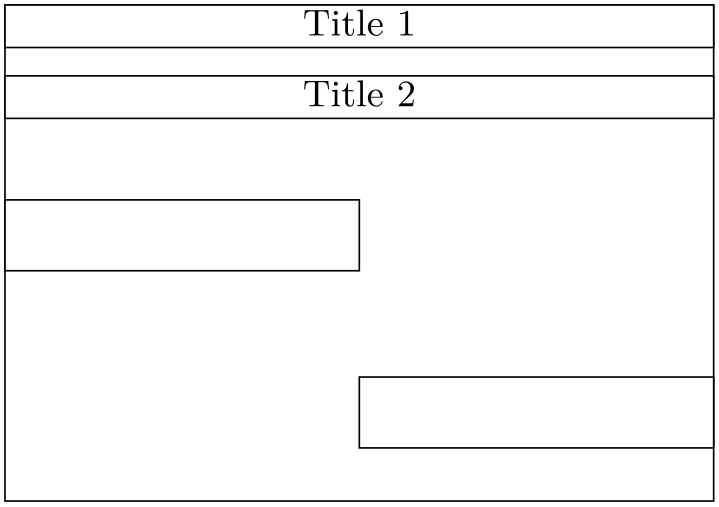
These keys specify the width of a time slot and the height of title or chart lines, respectively. Typically, the \(x/y\)-dimension ratio approximates \(1:2\), and the line height is equal over the whole chart. Other dimensions are well possible, but you might have to change several spacing-related keys in order to obtain a pleasing chart.
\begin{ganttchart}[
    x unit=1cm,
    y unit title=.6cm,
    y unit chart=1.5cm
  ]{1}{6}
  \gantttitle{Title 1}{6} \\
  \gantttitle{Title 2}{6} \\
  \ganttbar{}{1}{3} \\
  \ganttbar{}{4}{6}
\end{ganttchart}
-
/pgfgantt/expand chart [=none | ⟨dimension⟩]none 
If the value of this key differs from none, the Gantt chart will expand horizontally to ⟨dimension⟩. Use this key to produce charts that automatically expand to the text width. Two LaTeX runs are required to calculate the correct size of the chart.
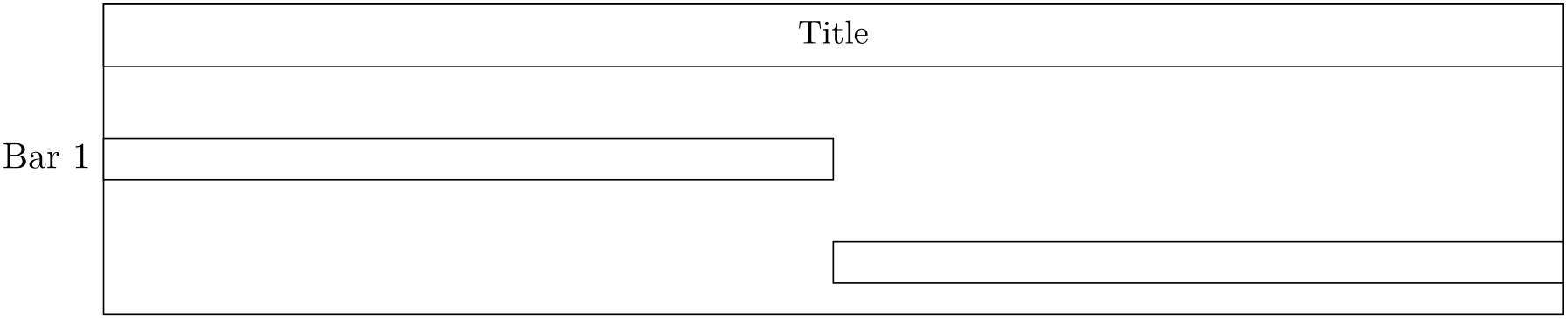
\begin{ganttchart}[
    expand chart=\textwidth
  ]{1}{6}
  \gantttitle{Title}{6} \\
  \ganttbar{Bar 1}{1}{3} \\
  \ganttbar{}{4}{6}
\end{ganttchart}
-
/pgfgantt/hgrid [=false | true | ⟨style list⟩]false 
-
/pgfgantt/hgrid style /.style=⟨style⟩dotted 
-
/pgfgantt/vgrid [=false | true | ⟨style list⟩]false 
hgrid draws a horizontal grid which starts immediately below the last title element. The key can be specified in four different ways: Firstly, hgrid=false eliminates the horizontal grid. You may omit this declaration, since it is the default. Secondly, both hgrid and hgrid=true activate the horizontal grid, which is then drawn in the default style dotted. Finally, hgrid=⟨style list⟩ draws the horizontal grid in the given ⟨style list⟩ (see below).
hgrid style changes the style of single horizontal grid lines that are drawn with \ganttnewline[grid] (see section 2.4).
The vgrid key governs the vertical grid; otherwise, use it exactly like hgrid.
Style lists allow you to draw the grid lines in different styles. Each style list consists of several style list items separated by a comma. A style list item has the general syntax *{⟨n⟩}{⟨style⟩} and orders the package to repeat the ⟨style⟩ ⟨n⟩-times. (This syntax is reminiscent of column specifications in a tabular environment.) Thus, the list *2{red}, *1{green}, *{10}{blue, dashed} instructs pgfgantt to draw first two red vertical grid lines, then a green one and finally ten dashed blue lines. If any grid lines remain to be drawn at the end of the list, the package starts again at the beginning of the list.
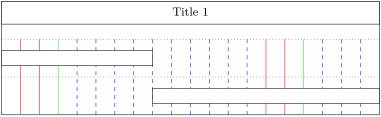
\begin{ganttchart}[
    hgrid=true,
    vgrid={*2{red}, *1{green}, *{10}{blue, dashed}}
  ]{1}{20}
  \gantttitle{Title 1}{20} \\
  \ganttbar{}{1}{8} \\
  \ganttbar{}{9}{20}
\end{ganttchart}
In most situations, you can omit the multiplier *1. Hence, the following style lists are equal:
{*1{red}, *1{blue, dashed}}
{{red}, {blue, dashed}}
{red, {blue, dashed}}
However, if you wish to use a single style comprising two or more keys for all grid lines, e. g. red, dotted, you must retain the multiplier (i. e., {*1{red, dotted}}).
% wrong code

\begin{ganttchart}[
    hgrid=true,
    vgrid={{red, dotted}}
  ]{1}{6}
  \gantttitle{Title 1}{6} \\
  \ganttbar{}{1}{3} \\
  \ganttbar{}{4}{6}
\end{ganttchart}
% correct code

\begin{ganttchart}[
    hgrid=true,
    vgrid={*1{red, dotted}}
  ]{1}{6}
  \gantttitle{Title 1}{6} \\
  \ganttbar{}{1}{3} \\
  \ganttbar{}{4}{6}
\end{ganttchart}
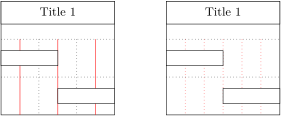
In a chart with many time slots, drawing vertical grid lines between all of them will lead to a confusing appearance. In such a case, you can pass an appropriate ⟨style list⟩ to vgrid in order to draw every second grid line, for example.
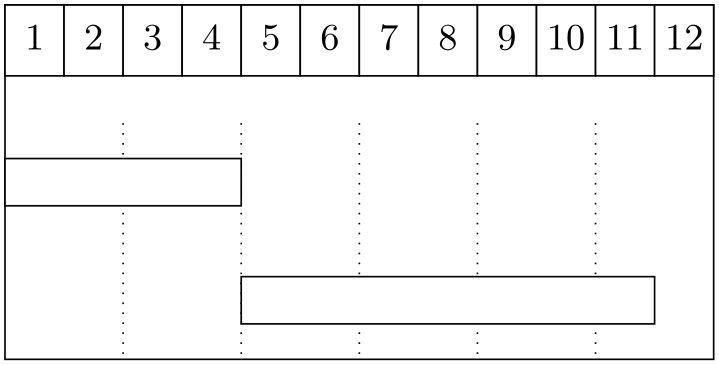
\begin{ganttchart}[vgrid={draw=none, dotted}]{1}{12}
  \gantttitlelist{1,...,12}{1} \\
  \ganttbar{}{1}{4} \\
  \ganttbar{}{5}{11}
\end{ganttchart}
-
/pgfgantt/today =⟨tss⟩none 
-
/pgfgantt/today offset =⟨number⟩1 
-
/pgfgantt/today rule /.style=⟨style⟩dashed, line width=1pt 
-
/pgfgantt/today label =⟨text⟩TODAY 
-
/pgfgantt/today label font =⟨font commands⟩\normalfont 
-
/pgfgantt/today label node /.style=⟨style⟩anchor=north, font=\ganttvalueof{today label font} 
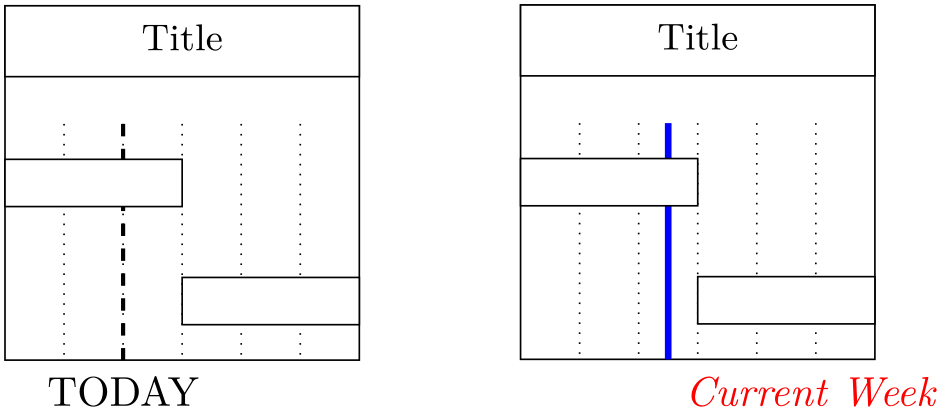
Sometimes, you may wish to indicate the current day, month or the like on a Gantt chart. In order to do so, pass an integer value to the today key, which draws a vertical rule at the corresponding ⟨tss⟩. today offset determines the exact \(y\)-coordinate in the time slot and should lie between 0.0 (left border) and 1.0 (right border). The today rule appears in the ⟨style⟩ denoted by today rule. The node that contains the ⟨text⟩ given by today label appears below the rule. It is formatted by today label font and today label node.
\begin{ganttchart}[
    vgrid,
    today=2
  ]{1}{6}
  \gantttitle{Title}{6} \\
  \ganttbar{}{1}{3} \\
  \ganttbar{}{4}{6}
\end{ganttchart}
\begin{ganttchart}[
    vgrid,
    time slot format=isodate,
    today=2013-05-03,
    today offset=.5,
    today label=Current Week,
    today label node/.append style=%
      {anchor=north west},
    today label font=\itshape\color{red},
    today rule/.style=%
      {draw=blue, ultra thick}
  ]{2013-05-01}{2013-05-06}
  \gantttitle{Title}{6} \\
  \ganttbar{}{2013-05-01}{2013-05-03} \\
  \ganttbar{}{2013-05-04}{2013-05-06}
\end{ganttchart}
2.4Line Breaks between Chart Elements
pgfgantt does not automatically begin a new line after finishing a \ganttnewline chart element. Instead, you must insert an explicit line break with \ganttnewline.
-
/pgfgantt/newline shortcut =⟨boolean⟩true 
If true, \\ \\ is defined as a shortcut for \ganttnewline within a ganttchart environment, so that the syntax is reminiscent of LaTeX’s tabular enviroment.
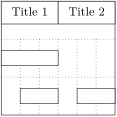
\begin{ganttchart}[hgrid, vgrid]{1}{6}
  \gantttitle{Title 1}{3}
  \gantttitle{Title 2}{3} \\
  \ganttbar{}{1}{3} \ganttnewline
  \ganttbar{}{2}{3}
  \ganttbar{}{5}{6}
\end{ganttchart}
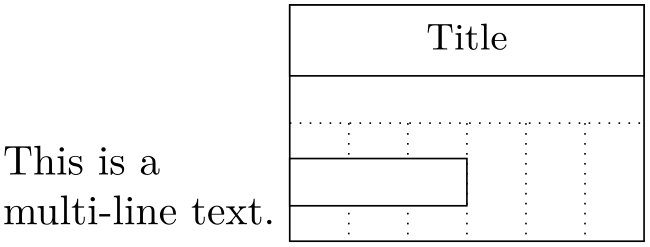
However, enabling this shortcut prevents you from entering multi-line node text (see section 16.4.3 of the TikZ manual). Thus, pgfgantt provides the macro \ganttalignnewline \ganttalignnewline for breaking lines in the node text.
\begin{ganttchart}[
    hgrid,
    vgrid,
    newline shortcut=false,
    bar label node/.append style=%
      {align=left}
  ]{1}{6}
  \gantttitle{Title}{6} \ganttnewline
  \ganttbar{%
    This is a\\
    multi-line text.%
  }{1}{3}
\end{ganttchart}
\begin{ganttchart}[
    hgrid,
    vgrid,
    newline shortcut=true,
    bar label node/.append style=%
      {align=left}
  ]{1}{6}
  \gantttitle{Title}{6} \\
  \ganttbar{%
    This is a\ganttalignnewline
    multi-line text.%
  }{1}{3}
\end{ganttchart}
Even if you prefer a canvas without a horizontal grid, you may nevertheless want to separate certain lines by a grid rule. For this purpose, specify the optional argument [grid] for \ganttnewline (or \\), which draws a grid rule in hgrid style between the current and the new line. Alternatively, directly give the desired style as optional argument.
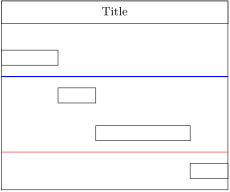
\begin{ganttchart}[hgrid style/.style=red]{1}{12}
  \gantttitle{Title}{12} \\
  \ganttbar{}{1}{3} \ganttnewline[thick, blue]
  \ganttbar{}{4}{5} \\
  \ganttbar{}{6}{10} \\[grid]
  \ganttbar{}{11}{12}
\end{ganttchart}
2.5Titles
A title (comprising one or more lines) at the top of a Gantt chart usually indicates the period of time covered by that chart. For example, the first line could span twelve time slots and display the current year, while the second line could contain twelve elements, each of which corresponds to one month. For these purposes, pgfgantt implements several titling commands.
\gantttitle \gantttitle draws a single title element:
\gantttitle`\oarg{options}\marg{label}\marg{number of time slots}'
The ⟨label⟩ appears in the title element, which covers the ⟨number of time slots⟩ starting from the right end of the last title element (or from the beginning of the line, if the title element is the first element in this line). Mostly, you will employ \gantttitle for titles that span several time slots.
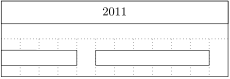
\begin{ganttchart}[hgrid, vgrid]{1}{12}
  \gantttitle{2011}{12} \\
  \ganttbar{}{1}{4}
  \ganttbar{}{6}{11}
\end{ganttchart}
Whenever you want to draw a larger number of title elements that are equal in size and follow a common enumeration scheme, the \gantttitlelist \gantttitlelist macro provides a fast solution:
\gantttitlelist`\oarg{options}\marg{pgffor list}\marg{length of each element}'
This macro generates one title element for each element of the ⟨pgffor list⟩. The second mandatory argument specifies the ⟨length of each element⟩. Refer to section 56 of the TikZ manual for the detailed syntax for the ⟨pgffor list⟩.
A simple application is to draw twelve title elements that contain the numbers from 1 to 12. The ⟨pgffor list⟩ is 1,...,12.
\begin{ganttchart}[hgrid, vgrid]{1}{12}
  \gantttitlelist{1,...,12}{1} \\
  \ganttbar{}{1}{3}
  \ganttbar{}{5}{12}
\end{ganttchart}
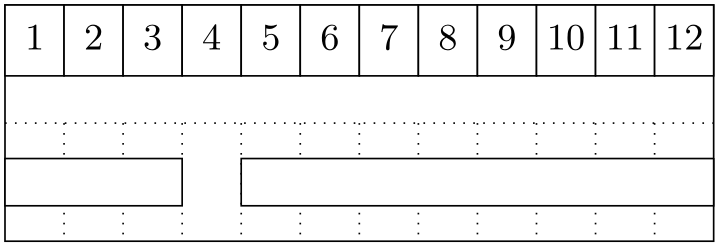 Note that we would have obtained the same result if we had written
\gantttitle{1}{1} \gantttitle{2}{1} `\dots' \gantttitle{12}{1} \\
As an advanced example, we will draw seven title elements containing the names of the weekdays (“Mon” to “Sun”). To this end, we introduce an additional key:
-
/pgfgantt/title list options =⟨pgffor options⟩var=\x, evaluate=\x 
Changes the ⟨pgffor options⟩ of the \foreach command called by \gantttitlelist (see section 56 of the TikZ manual). The macro that yields the labels to be printed by \gantttitlelist must be called \x.
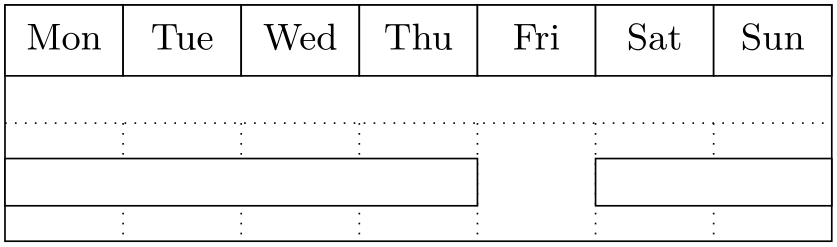
\begin{ganttchart}[hgrid, vgrid, x unit=1cm]{1}{7}
  \gantttitlelist[
    title list options=%
      {var=\y, evaluate=\y as \x%
      using "\pgfcalendarweekdayshortname{\y}"}
  ]{0,...,6}{1} \\
  \ganttbar{}{1}{4}
  \ganttbar{}{6}{7}
\end{ganttchart}
While you actually may build any chart title with the two commands described previously, \gantttitlecalendar \gantttitlecalendar saves a lot of time when you wish to create elaborate calendars:
\gantttitlecalendar`\oarg{options}\marg{calendar lines}'
Prints a title calendar that spans the whole chart and contains one or more ⟨calendar lines⟩. The starred \gantttitlecalendar * form of the macro prints a calendar from ⟨start tss⟩ to ⟨end tss⟩:
\gantttitlecalendar*`\oarg{options}\marg{start tss}\marg{end tss}\marg{calendar lines}'
⟨calendar lines⟩ is a comma-separated list of line types:
| Line type | ⟨output format⟩ | Example output |
| decade | n/a | 2000s, 2010s, … |
| year | n/a | 2012, 2013, … |
| month [=⟨output format⟩] | (none) | 01, 02, …, 12 |
| name | January, February, … | |
| shortname | Jan, Feb, … | |
| week [=⟨number⟩] | n/a | Week 1, Week 2, … |
| weekday [=⟨output format⟩] | (none) | 0, 1, …, 6 |
| name | Monday, Tuesday, … | |
| shortname | Mon, Tue, … | |
| day | n/a | 01, 02, …, 31 |
The ⟨number⟩ for the week line type is the number of the first week in the calendar.
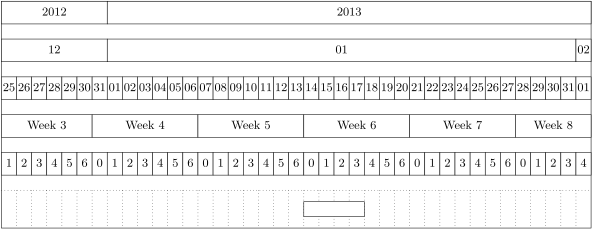
\begin{ganttchart}[
    hgrid,
    vgrid,
    x unit=4mm,
    time slot format=isodate
  ]{2012-12-25}{2013-02-01}
  \gantttitlecalendar{year, month, day, week=3, weekday} \\
  \ganttbar{}{2013-01-14}{2013-01-17}
\end{ganttchart}
You can easily add new output formats for month and weekday. The predefined ones use the macros described in section 57.1.3 of the TikZ manual. For example, weekday=name calls \pgfcalendarweekdayname. Thus, new macros called \pgfcalendarmonth⟨output format⟩ or \pgfcalendarweekday⟨output format⟩ will provide additional ⟨output format⟩s for month and weekday, respectively.
A weekday output format called letter, which displays a weekday as single letter, might be implemented as follows:
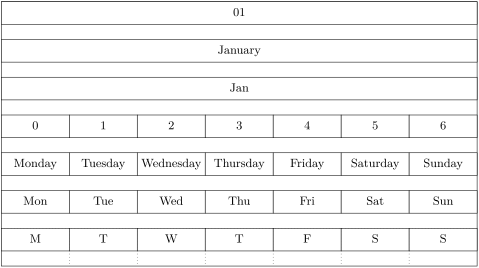
\def\pgfcalendarweekdayletter#1{%
  \ifcase#1M\or T\or W\or T\or F\or S\or S\fi%
}

\begin{ganttchart}[
    hgrid,
    vgrid,
    x unit=18mm,
    time slot format=little-endian
  ]{7.1.2013}{13.1.2013}
  \gantttitlecalendar*{7.1.2013}{13.1.2013}{
    month, month=name, month=shortname, weekday,
    weekday=name, weekday=shortname, weekday=letter
  }
\end{ganttchart}
-
/pgfgantt/calendar week text =⟨format⟩Week~\currentweek 
Changes the text displayed in a week title element. In ⟨format⟩, four additional macros are available: \currentweek \currentweek is the current week number; \startyear \startyear, \startmonth \startmonth and \startday \startday expand to the year, month and day of the current week’s Monday.
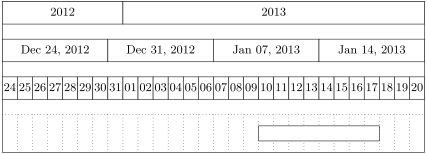
\ganttset{%
  calendar week text={%
    \pgfcalendarmonthshortname{\startmonth}~\startday, \startyear%
  }%
}
\begin{ganttchart}[
    hgrid,
    vgrid,
    x unit=4mm,
    time slot format=isodate
  ]{2012-12-24}{2013-01-20}
  \gantttitlecalendar{year, week, day} \\
  \ganttbar{}{2013-01-10}{2013-01-17}
\end{ganttchart}
-
/pgfgantt/time slot unit =day | month | yearday 
By default, one calendar day is one time slot wide. With time slot unit=month, one month corresponds to one time slot. Consequently, in such calendars only year and month are sensible line types for \gantttitlecalendar, and the time slot format isodate-yearmonth is especially suited.
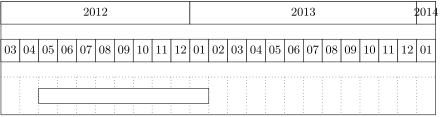
\begin{ganttchart}[
    hgrid,
    vgrid,
    time slot format=isodate-yearmonth,
    time slot unit=month
  ]{2012-03}{2014-1}
  \gantttitlecalendar{year, month} \\
  \ganttbar{}{2012-05}{2013-01}
\end{ganttchart}
With time slot unit=year, one year corresponds to one time slot. Consequently, in such calendars only decade and year are sensible line types for \gantttitlecalendar, and the time slot format isodate-year is especially suited.
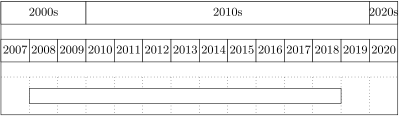
\begin{ganttchart}[
    hgrid,
    vgrid,
    x unit=7.5mm,
    time slot format=isodate-year,
    time slot unit=year
  ]{2007}{2020}
  \gantttitlecalendar{decade, year} \\
  \ganttbar{}{2008}{2018}
\end{ganttchart}
-
/pgfgantt/title /.style=⟨style⟩shape=rectangle, inner sep=0pt, draw, fill=white 
Sets the appearance of a title element.
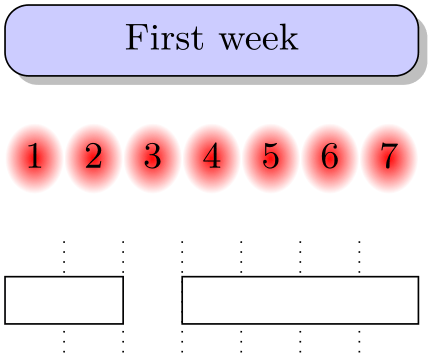
\usetikzlibrary{shadows}
\usetikzlibrary{shadings}
  `$\cdots$'
\begin{ganttchart}[
    vgrid,
    canvas/.style={draw=none},
    title/.append style=%
      {fill=blue!20, rounded corners=2mm, drop shadow}
  ]{1}{7}
  \gantttitle{First week}{7} \\
  \gantttitlelist[
    title/.style={draw=none, inner color=red}
  ]{1,...,7}{1} \\
  \ganttbar{}{1}{2}
  \ganttbar{}{4}{7}
\end{ganttchart}
-
/pgfgantt/title label font =⟨font commands⟩\small 
-
/pgfgantt/title label node /.style=⟨options⟩anchor=center, font=\ganttvalueof{title label font} 
-
/pgfgantt/title label text =⟨text⟩\strut#1 
The ⟨font commands⟩ and ⟨options⟩ are applied to the title label node, which is positioned at the center of each title element. ⟨text⟩ should contain a single parameter token (#1), which is replaced by the first mandatory argument of \gantttitle. The \strut in the standard value ensures equal vertical spacing of the labels.
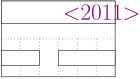
\begin{ganttchart}[
    vgrid,
    hgrid,
    title label font=\LARGE\color{violet},
    title label node/.append style={anchor=west},
    title label text=<#1>
  ]{1}{6}
  \gantttitle{2011}{6} \\
  \ganttbar{}{1}{2}
  \ganttbar{}{4}{6}
\end{ganttchart}
-
/pgfgantt/title left shift =⟨factor⟩0 
-
/pgfgantt/title right shift =⟨factor⟩0 
-
/pgfgantt/title top shift =⟨factor⟩0 
-
/pgfgantt/title height =⟨factor⟩0.6 
The first three keys shift the coordinates of a title element’s borders (or rather of its corners), while title height changes its height. By default, the left upper corner of a title element coincides with the origin of the start time slot; its right lower corner touches the right border of the end time slot 0.6 units below the upper line border:
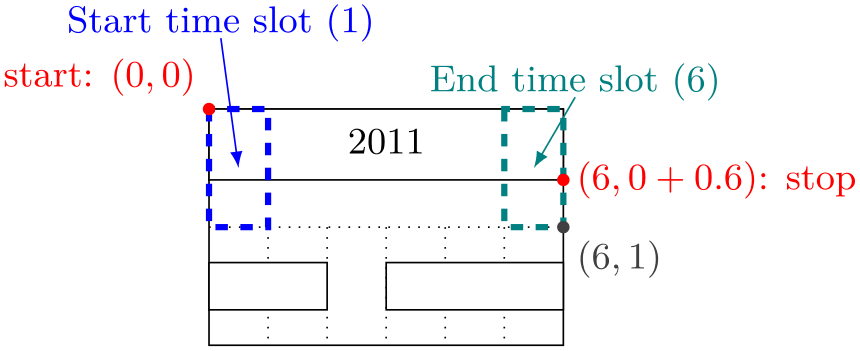 The figure below shows a Gantt chart with two lines and one (large) time slot and indicates the distances modified by these keys.
 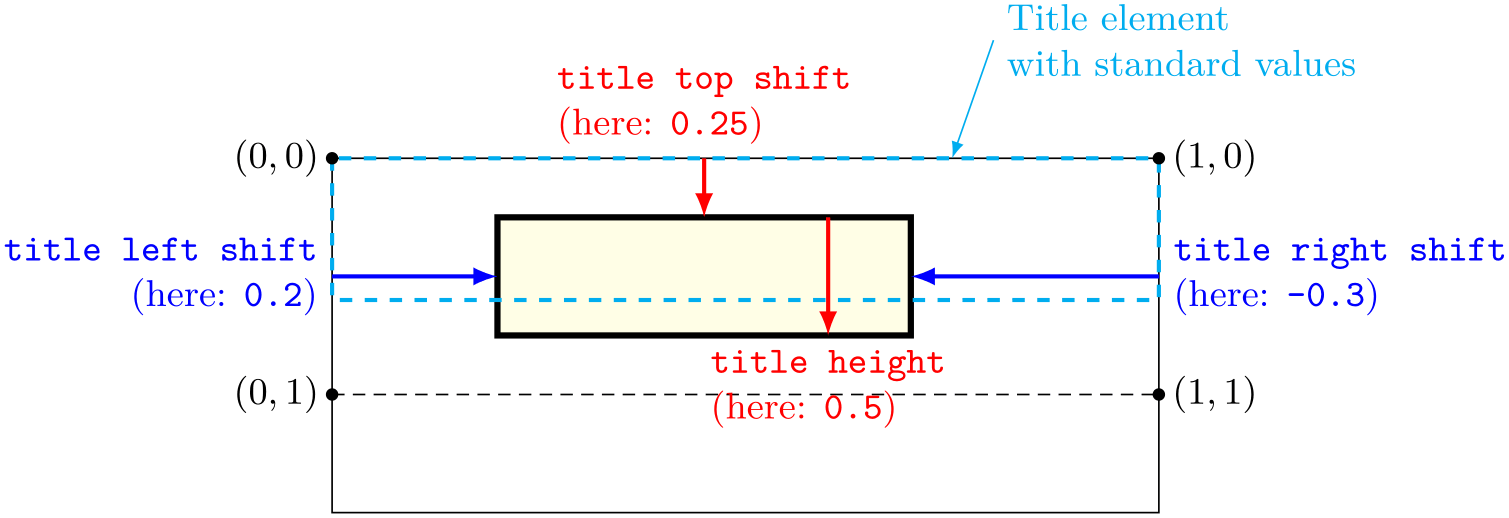 For example, you might devise a layout where the title element does not touch the borders of the start and end time slot.
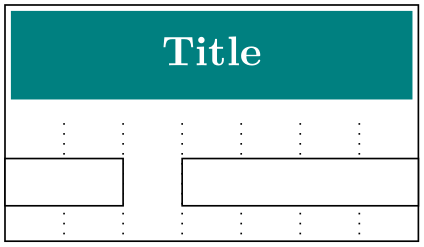
\begin{ganttchart}[
    vgrid,
    title/.style={fill=teal, draw=none},
    title label font=\color{white}\bfseries,
    title left shift=.1,
    title right shift=-.1,
    title top shift=.05,
    title height=.75
  ]{1}{7}
  \gantttitle{Title}{7} \\
  \ganttbar{}{1}{2}
  \ganttbar{}{4}{7}
\end{ganttchart}
-
/pgfgantt/include title in canvas =⟨boolean⟩true 
The canvas normally comprises all lines of the chart. However, you may wish that your title elements only consist of text lacking any frame or background. In this case, the canvas probably should exclude all lines containing title elements, which you achieve by include title in canvas=false.
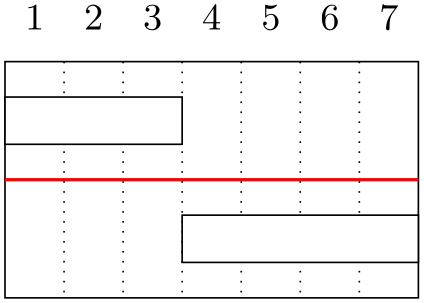
\begin{ganttchart}[
    hgrid={*1{draw=red, thick}},
    vgrid,
    y unit title=.5cm,
    title/.style={draw=none, fill=none},
    include title in canvas=false
  ]{1}{7}
  \gantttitlelist{1,...,7}{1} \\
  \ganttbar{}{1}{3} \\
  \ganttbar{}{4}{7}
\end{ganttchart}
2.6Vertical rules
A vertical rule indicates an important date like a deadline. Such rules represent a generalization of the today rule and are drawn by the \ganttvrule \ganttvrule macro:
\ganttvrule`\oarg{options}\marg{label}\marg{tss}'
This macro draws a ⟨label⟩ed vertical rule at the given ⟨tss⟩.
-
/pgfgantt/vrule offset =⟨number⟩1 
-
/pgfgantt/vrule /.style=⟨style⟩dashed, line width=1pt 
-
/pgfgantt/vrule label font =⟨font commands⟩\normalfont 
-
/pgfgantt/vrule label node /.style=⟨style⟩anchor=north, font=\ganttvalueof{vrule label font} 
vrule offset determines the exact \(y\)-coordinate in the time slot and should lie between 0.0 (left border) and 1.0 (right border). The vertical rule appears in the ⟨style⟩ denoted by vrule. The label is formatted by vrule label font and vrule label node.
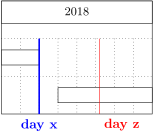
\begin{ganttchart}[
    vgrid,
    hgrid,
    vrule/.style={very thick, blue},
    vrule label font=\bfseries
  ]{1}{8}
  \gantttitle{2018}{8} \\
  \ganttbar{}{1}{2} \\
  \ganttbar{}{4}{8}
  \ganttvrule{day x}{2}
  \ganttvrule[
    vrule/.append style={red, thin},
    vrule offset=.2,
    vrule label node/.append style={anchor=north west}
  ]{day z}{6}
\end{ganttchart}
2.7Predefined Chart Elements
pgfgantt predefines three chart elements:
-
1. \ganttbar Bars indicate the duration of a task or one of its parts.
\ganttbar`\oarg{options}\marg{label}\marg{start tss}\marg{end tss}' -
2. \ganttgroup Groups combine several subtasks (represented by bars) into a single task.
\ganttgroup`\oarg{options}\marg{label}\marg{start tss}\marg{end tss}' -
3. \ganttmilestone Milestones signify that an important task has been completed or that a crucial goal has been reached.
\ganttmilestone`\oarg{options}\marg{label}\marg{tss}'
Each of these macros draws a ⟨label⟩ed chart element from the ⟨start tss⟩ to the ⟨end tss⟩ (or at the given ⟨tss⟩ in case of \ganttmilestone).
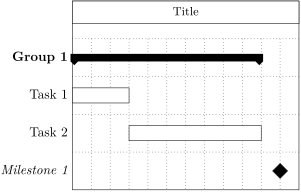
\begin{ganttchart}[vgrid, hgrid]{1}{12}
  \gantttitle{Title}{12} \\
  \ganttgroup{Group 1}{1}{10} \\
  \ganttbar{Task 1}{1}{3} \\
  \ganttbar{Task 2}{4}{10} \\
  \ganttmilestone{Milestone 1}{11}
\end{ganttchart}
For \ganttlinkedbar each predefined chart element, there is also a macro that additionally draws a link \ganttlinkedgroup from the previous element. Otherwise, these macros work exactly like the standard \ganttlinkedmilestone versions:
\ganttlinkedbar`\oarg{options}\marg{label}\marg{start tss}\marg{end tss}'
\ganttlinkedgroup`\oarg{options}\marg{label}\marg{start tss}\marg{end tss}'
\ganttlinkedmilestone`\oarg{options}\marg{label}\marg{tss}'
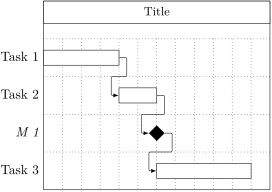
In the following example, the code on the left is equivalent to the code on the right.
% Short version

\begin{ganttchart}[
    vgrid,
    hgrid
  ]{1}{12}
  \gantttitle{Title}{12} \\
  \ganttbar{Task 1}{1}{4} \\
  \ganttlinkedbar{Task 2}{5}{6} \\
  \ganttlinkedmilestone{M 1}{6} \\
  \ganttlinkedbar{Task 3}{7}{11}
\end{ganttchart}
% Long version

\begin{ganttchart}[
    vgrid,
    hgrid
  ]{1}{12}
  \gantttitle{Title}{12} \\
  \ganttbar{Task 1}{1}{4} \\
  \ganttbar{Task 2}{5}{6} \\
  \ganttmilestone{M 1}{6} \\
  \ganttbar{Task 3}{7}{11}
  \ganttlink{elem0}{elem1}
  \ganttlink{elem1}{elem2}
  \ganttlink{elem2}{elem3}
\end{ganttchart}
-
/pgfgantt/chart element start border =left | rightleft 
Determines which border of the start time slot a chart element touches. left is the behavior usually expected, while right strictly interprets the start time slot as an \(x\)-coordinate.
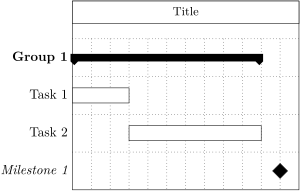
\begin{ganttchart}[vgrid, hgrid, chart element start border=right]{1}{12}
  \gantttitle{Title}{12} \\
  \ganttgroup{Group 1}{0}{10} \\
  \ganttbar{Task 1}{0}{3} \\
  \ganttbar{Task 2}{3}{10} \\
  \ganttmilestone{Milestone 1}{11}
\end{ganttchart}
2.7.1Options: Chart Element Appearance
The following options are similar for all predefined (and user-defined) chart elements:
-
/pgfgantt/bar /.style=⟨style⟩shape=ganttbar, inner sep=0pt, draw, fill=white 
-
/pgfgantt/group /.style=⟨style⟩shape=ganttgroup, inner sep=0pt, fill=black 
-
/pgfgantt/milestone /.style=⟨style⟩shape=ganttmilestone, inner sep=0pt, draw, fill=black 
Determines the appearance of the chart element. The shapes ganttbar, ganttgroup and ganttmilestone are described below.
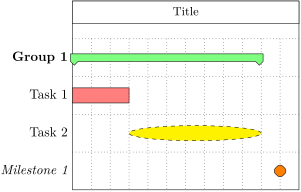
\begin{ganttchart}[
    vgrid,
    hgrid,
    bar/.append style={fill=red!50},
    group/.append style={draw=black, fill=green!50},
    milestone/.append style={fill=orange, rounded corners=3pt}
  ]{1}{12}
  \gantttitle{Title}{12} \\
  \ganttgroup{Group 1}{1}{10} \\
  \ganttbar{Task 1}{1}{3} \\
  \ganttbar[
    bar/.append style={shape=ellipse, fill=yellow, dashed}
  ]{Task 2}{4}{10} \\
  \ganttmilestone{Milestone 1}{11}
\end{ganttchart}
2.7.2Options: Label Formatting
-
/pgfgantt/bar label text =⟨text⟩\strut#1 
-
/pgfgantt/group label text =⟨text⟩\strut#1 
-
/pgfgantt/milestone label text =⟨text⟩\strut#1 
-
/pgfgantt/bar label font =⟨font commands⟩\normalsize 
-
/pgfgantt/group label font =⟨font commands⟩\bfseries 
-
/pgfgantt/milestone label font =⟨font commands⟩\itshape 
-
/pgfgantt/bar label node ./style=⟨options⟩anchor=east, font=\ganttvalueof{bar label font} 
-
/pgfgantt/group label node ./style=⟨options⟩anchor=east, font=\ganttvalueof{group label font} 
-
/pgfgantt/milestone label node ./style=⟨options⟩anchor=east, font=\ganttvalueof{milestone label font} 
The … label text keys configure the label ⟨text⟩ next to each chart element. Each of these keys should contain a single parameter token (#1), which is replaced by the first mandatory argument of \ganttbar etc. The \strut in the standard value ensures equal vertical spacing of the labels. The ⟨font commands⟩ of … label font and the ⟨options⟩ of … label node are applied to the label node at the left border of the chart (see inline below).
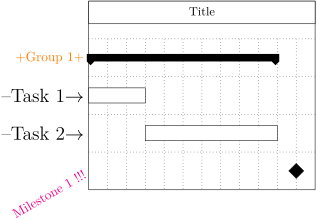
\begin{ganttchart}[
    vgrid,
    hgrid,
    bar label font=\Large,
    bar label text={--#1$\rightarrow$},
    group label font=\color{orange},
    group label text={+#1+},
    milestone label font=\color{magenta},
    milestone label node/.append style={rotate=30},
    milestone label text={#1 !!!}
  ]{1}{12}
  \gantttitle{Title}{12} \\
  \ganttgroup{Group 1}{1}{10} \\
  \ganttbar{Task 1}{1}{3} \\
  \ganttbar{Task 2}{4}{10} \\
  \ganttmilestone{Milestone 1}{11}
\end{ganttchart}
-
/pgfgantt/inline =⟨boolean⟩false 
-
/pgfgantt/bar inline label anchor =⟨anchor⟩center 
-
/pgfgantt/group inline label anchor =⟨anchor⟩center 
-
/pgfgantt/milestone inline label anchor =⟨anchor⟩center 
-
/pgfgantt/bar inline label node /.style=⟨options⟩anchor=center, font=\ganttvalueof{bar label font} 
-
/pgfgantt/group inline label node /.style=⟨options⟩anchor=south, font=\ganttvalueof{group label font} 
-
/pgfgantt/milestone inline label node /.style=⟨options⟩anchor=south, font=\ganttvalueof{milestone label font} 
If two or more chart elements appear in a single line, their labels will overlap at the left border of the chart. Thus, you can place the label adjacent to a chart element by setting the boolean key inline to true. This key instructs the package to draw the label node at the … inline label anchor of the respective chart element and apply the ⟨options⟩ given by … inline label node.
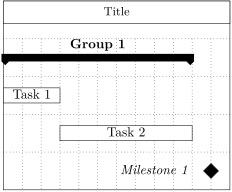
\begin{ganttchart}[
    vgrid,
    hgrid,
    inline,
    milestone inline label node/.append style={left=5mm}
  ]{1}{12}
  \gantttitle{Title}{12} \\
  \ganttgroup{Group 1}{1}{10} \\
  \ganttbar{Task 1}{1}{3} \\
  \ganttbar{Task 2}{4}{10} \\
  \ganttmilestone{Milestone 1}{11}
\end{ganttchart}
2.7.3Options: Chart Element Positioning
-
/pgfgantt/bar left shift =⟨factor⟩0 
-
/pgfgantt/bar right shift =⟨factor⟩0 
-
/pgfgantt/bar top shift =⟨factor⟩.3 
-
/pgfgantt/bar height =⟨factor⟩.4 
-
/pgfgantt/group left shift =⟨factor⟩-.1 
-
/pgfgantt/group right shift =⟨factor⟩.1 
-
/pgfgantt/group top shift =⟨factor⟩.4 
-
/pgfgantt/group height =⟨factor⟩.2 
-
/pgfgantt/milestone left shift =⟨factor⟩.6 
-
/pgfgantt/milestone right shift =⟨factor⟩.4 
-
/pgfgantt/milestone top shift =⟨factor⟩.3 
-
/pgfgantt/milestone height =⟨factor⟩.4 
-
/pgfgantt/group right peak tip position =⟨fraction⟩0.5 
-
/pgfgantt/group right peak width =⟨factor⟩0.4 
-
/pgfgantt/group right peak height =⟨factor⟩0.1 
-
/pgfgantt/group left peak tip position =⟨fraction⟩0.5 
-
/pgfgantt/group left peak width =⟨factor⟩0.4 
-
/pgfgantt/group left peak height =⟨factor⟩0.1 
-
/pgfgantt/group peaks tip position =⟨fraction⟩(none) 
-
/pgfgantt/group peaks width =⟨factor⟩(none) 
-
/pgfgantt/group peaks height =⟨factor⟩(none) 
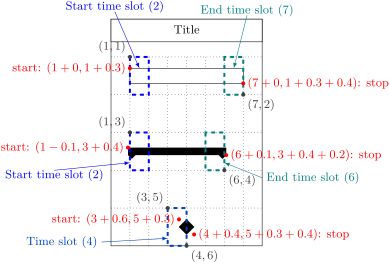
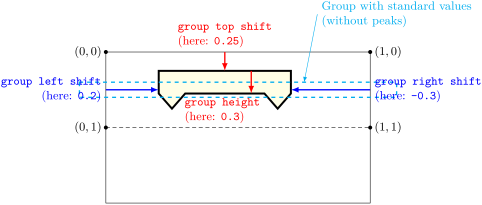
Shift the coordinates of a chart element’s borders (… shift) and change its height (… height).
The three following figures illustrate the distances modified by these keys. The first figure shows a Gantt chart with a bar, two lines and one time slot. 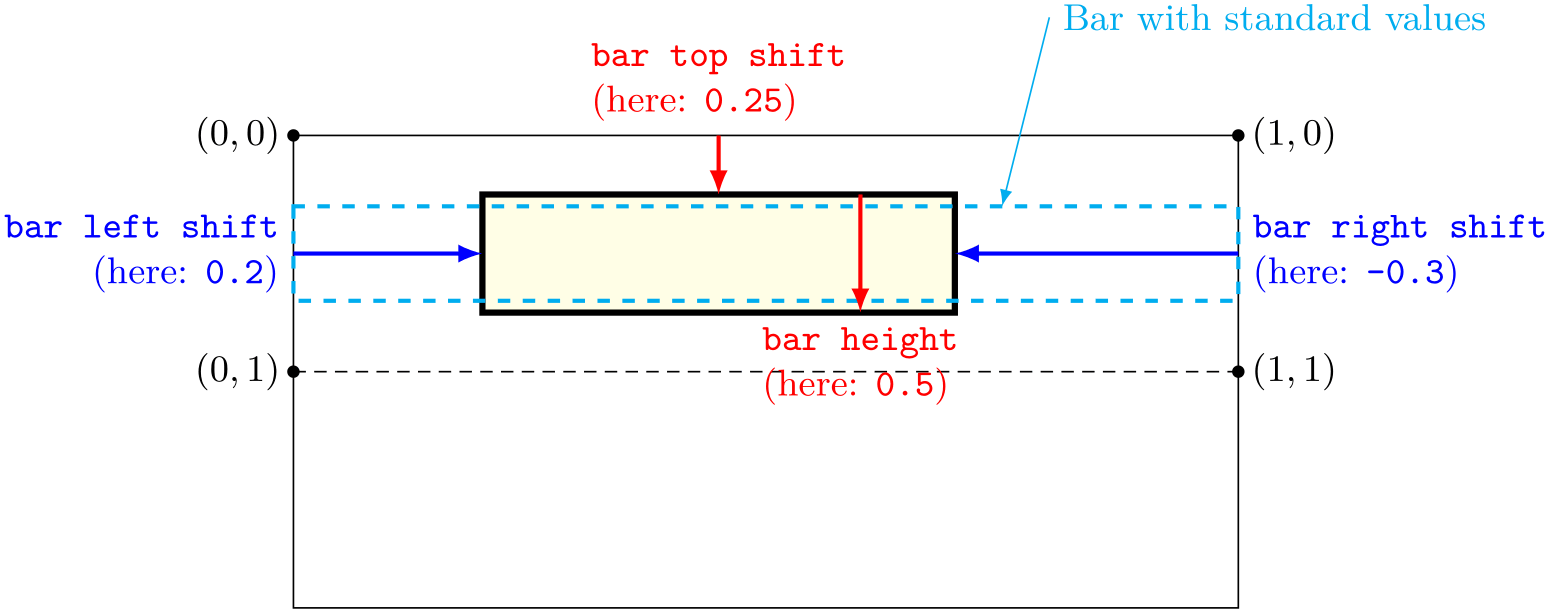 The second one shows a Gantt chart with a group, two lines and one time slot.
  The third one shows a Gantt chart with a milestone, two lines and two time slots.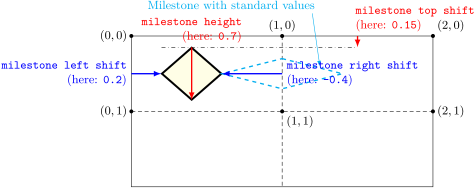
Change the appearance of the peaks at both ends of a group. By default, both the left and right peak are 0.4 units wide and 0.1 units high, their tips lie between the peak sides. The group peaks … keys set the dimensions for both peaks simultaneously. The figure below exemplifies the keys that apply to the left peak.
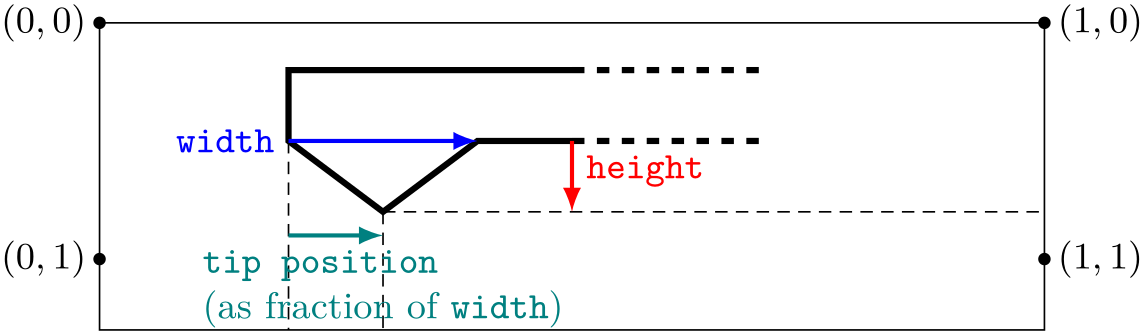
For example, you might devise the following layout: Bars are small and rounded; they do not touch the borders of their start and end time slots. Groups stay within the start and end time slot, and the peaks are more acute.
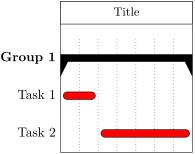
\begin{ganttchart}[
    vgrid,
    bar/.append style={fill=red, rounded corners=3pt},
    bar left shift=.15,
    bar right shift=-.15,
    bar top shift=.4,
    bar height=.2,
    group left shift=0,
    group right shift=0,
    group peaks tip position=0,
    group peaks height=.4
  ]{1}{7}
  \gantttitle{Title}{7} \\
  \ganttgroup{Group 1}{1}{7} \\
  \ganttbar{Task 1}{1}{2} \\
  \ganttbar{Task 2}{3}{7}
\end{ganttchart}
2.7.4Options: Progress
The progress of a chart element illustrates the extent to which this element has been completed.
-
/pgfgantt/progress =none | today | ⟨number⟩none 
Indicates that a chart element is ⟨number⟩ percent complete. The value none turns progress calculations off.
\begin{ganttchart}[vgrid, hgrid]{1}{12}
  \gantttitle{Title}{12} \\
  \ganttgroup[progress=45]{Group 1}{1}{12} \\
  \ganttbar[progress=100]{Subtask 1}{1}{3} \\
  \ganttbar[progress=37]{Subtask 2}{4}{8} \\
  \ganttbar[progress=none]{Subtask 3}{9}{12}
\end{ganttchart}
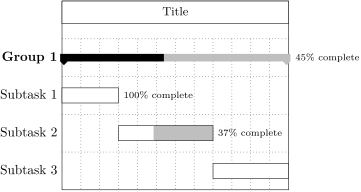 The value today instructs pgfgantt to calculate progress according to the value of the today key. Thus, if the current date \(T\) is earlier than the start date \(S\) of a chart element, its progress is 0 %; if the current date is later than the end date \(E\) of a chart element, its progress is 100 %; otherwise, its progress
\(P\) is calculated according to
The value today instructs pgfgantt to calculate progress according to the value of the today key. Thus, if the current date \(T\) is earlier than the start date \(S\) of a chart element, its progress is 0 %; if the current date is later than the end date \(E\) of a chart element, its progress is 100 %; otherwise, its progress
\(P\) is calculated according to
\begin{equation} P = \frac {T - S}{E - S} \times 100\,\% \end{equation}
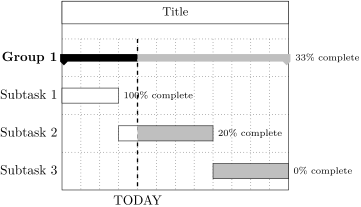
\begin{ganttchart}[
    vgrid,
    hgrid,
    time slot format=little-endian,
    progress=today,
    today=4.5.13
  ]{1.5.13}{12.5.13}
  \gantttitle{Title}{12} \\
  \ganttgroup{Group 1}{1.5.13}{12.5.13} \\
  \ganttbar{Subtask 1}{1.5.13}{3.5.13} \\
  \ganttbar{Subtask 2}{4.5.13}{8.5.13} \\
  \ganttbar{Subtask 3}{9.5.13}{12.5.13}
\end{ganttchart}
-
/pgfgantt/bar incomplete /.style=⟨style⟩/pgfgantt/bar, fill=black!25 
-
/pgfgantt/group incomplete /.style=⟨style⟩/pgfgantt/group, fill=black!25 
-
/pgfgantt/milestone incomplete /.style=⟨style⟩/pgfgantt/milestone, fill=black!25 
If \(P\) is the progress of a chart element, \(P\,\%\) of its area (starting from the left) appear in the basic style (i. e., bar, group, …), while the remainder is drawn in style bar incomplete, group incomplete etc.
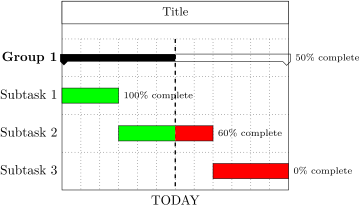
\begin{ganttchart}[
    vgrid,
    hgrid,
    time slot format=isodate,
    today=2013-04-06,
    progress=today,
    bar/.append style={fill=green},
    bar incomplete/.append style={fill=red},
    group incomplete/.append style={draw=black,fill=none}
  ]{2013-04-01}{2013-04-12}
  \gantttitle{Title}{12} \\
  \ganttgroup{Group 1}{2013-04-01}{2013-04-12} \\
  \ganttbar{Subtask 1}{2013-04-01}{2013-04-03} \\
  \ganttbar{Subtask 2}{2013-04-04}{2013-04-08} \\
  \ganttbar{Subtask 3}{2013-04-09}{2013-04-12}
\end{ganttchart}
-
/pgfgantt/progress label text =⟨text⟩\pgfmathprintnumber[precision=0, verbatim]{#1}\% complete 
-
/pgfgantt/bar progress label anchor =⟨anchor⟩east 
-
/pgfgantt/bar progress label font =⟨font commands⟩\scriptsize 
-
/pgfgantt/bar progress label node /.style=⟨options⟩anchor=west, font=\ganttvalueof{bar progress label font} 
-
/pgfgantt/group progress label anchor =⟨anchor⟩east 
-
/pgfgantt/group progress label font =⟨font commands⟩\scriptsize 
-
/pgfgantt/group progress label node /.style=⟨options⟩anchor=west, font=\ganttvalueof{group progress label font} 
-
/pgfgantt/milestone progress label anchor =⟨anchor⟩center 
-
/pgfgantt/milestone progress label font =⟨font commands⟩\scriptsize 
-
/pgfgantt/milestone progress label node /.style=⟨options⟩anchor=west, font=\ganttvalueof{milestone progress label font} 
The progress label text key sets the ⟨text⟩ that appears beside each progress element in order to indicate its completeness. This key may contain a single parameter token (#1), which is replaced by the (possibly calculated) value of progress. The progress label node is drawn at the … progress label anchor of the respective chart element, with the ⟨font commands⟩ given by … progress label font and the ⟨options⟩ given by … progress label node.
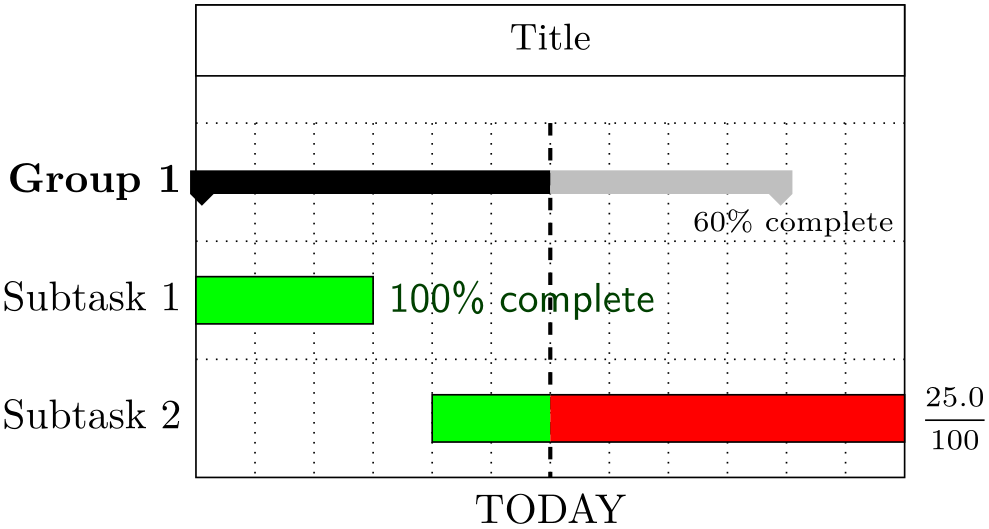
\begin{ganttchart}[
    vgrid,
    hgrid,
    bar/.append style={fill=green},
    bar incomplete/.append style={fill=red},
    progress=today,
    today=6,
    group progress label node/.append style={below=3pt}
  ]{1}{12}
  \gantttitle{Title}{12} \\
  \ganttgroup{Group 1}{1}{10} \\
  \ganttbar[
    bar progress label font=\color{green!25!black}\sffamily
  ]{Subtask 1}{1}{3} \\
  \ganttbar[
    progress label text={$\displaystyle\frac{#1}{100}$}
  ]{Subtask 2}{5}{12}
\end{ganttchart}
2.7.5New Node Shapes
pgfgantt defines three new node shapes:
(1) The ganttbar node shape derives from shape rectangle (section 48.2 of the TikZ manual). It provides four additional anchors: on top, on bottom, on left and on right. The ⟨fraction⟩ set by the following keys indicates a position between the left and right (for on top and on bottom) or upper and lower border (for on left and on right), similarly to the /tikz/pos key.
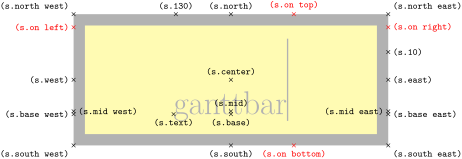
(2) The ganttgroup node shape also derives from shape rectangle. It provides the additional anchors on top, on bottom, on left, on right (same as above), left peak and
right peak. 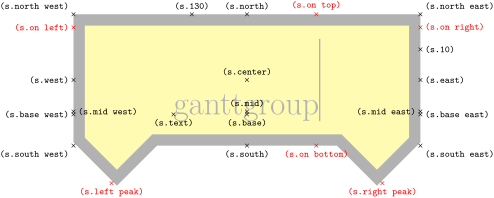
(3) The ganttmilestone node shape derives from shape diamond (section 48.3 of the TikZ manual), but does not consider any aspect ratio. It provides the additional anchors on top, on bottom, on
left and on right (same as above). 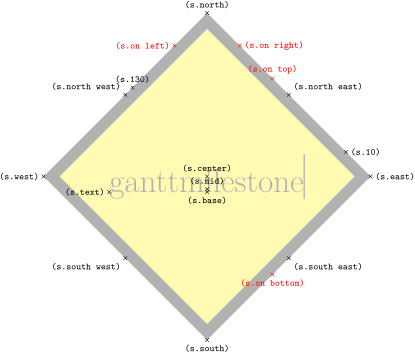
2.8Defining Custom Chart Elements
You may define completely new chart elements with
\newganttchartelement`\marg{name}\marg{new default key values}'
\newganttchartelement*`\marg{name}\marg{new default key values}'
\newganttchartelement \newganttchartelement (unstarred) defines a new chart element \gantt⟨name⟩ and the corresponding \ganttlinked⟨name⟩. These chart element macros take one optional argument ⟨options⟩ and three mandatory arguments ⟨label⟩, ⟨start tss⟩ and ⟨end tss⟩ (like \ganttbar).
Chart element macros defined by the starred form, \newganttchartelement * \newganttchartelement*, take the same single optional argument, but two mandatory arguments ⟨label⟩ and ⟨tss⟩ (like \ganttmilestone).
For each new chart element, \newganttchartelement also introduces a set of nine value-storing keys and five style keys and assigns default values to them:
| Key | Default value |
| Style keys | |
| ⟨name⟩ | shape=rectangle, inner sep=0pt, draw, fill=white |
| ⟨name⟩ incomplete | /pgfgantt/⟨name⟩, fill=black!25 |
| ⟨name⟩ label node | anchor=east, font=\ganttvalueof{⟨name⟩ label font} |
| ⟨name⟩ inline label node | anchor=center, font=\ganttvalueof{⟨name⟩ label font} |
| ⟨name⟩ progress label node | anchor=west, font=\ganttvalueof{⟨name⟩ progress label font} |
| Value-storing keys | |
| ⟨name⟩ label font | \normalsize |
| ⟨name⟩ inline label anchor | center |
| ⟨name⟩ progress label anchor | east |
| ⟨name⟩ progress label font | \scriptsize |
| ⟨name⟩ left shift | 0 |
| ⟨name⟩ right shift | 0 |
| ⟨name⟩ top shift | .3 |
| ⟨name⟩ height | .4 |
| ⟨name⟩ label text | \strut#1 |
Consequently, a new chart element will look like the standard \ganttbar unless you introduce some ⟨new default key values⟩.
Let us define a new chart element called “foobar”, which is basically a fancy-colored and -shaped bar:
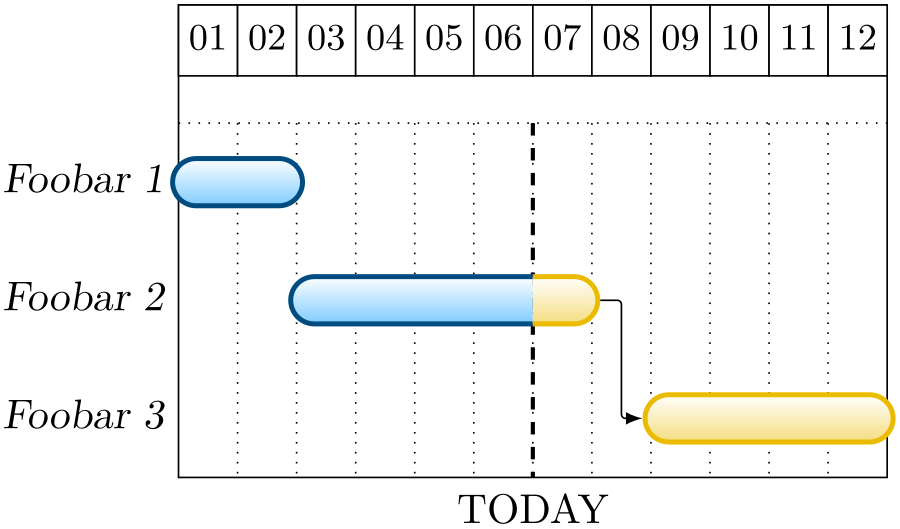
\definecolor{foobarblue}{RGB}{0,153,255}
\definecolor{foobaryellow}{RGB}{234,187,0}

\newganttchartelement{foobar}{
  foobar/.style={
    shape=rounded rectangle,
    inner sep=0pt,
    draw=foobarblue!50!black,
    very thick,
    top color=white,
    bottom color=foobarblue!50
  },
  foobar incomplete/.style={
    /pgfgantt/foobar,
    draw=foobaryellow,
    bottom color=foobaryellow!50
  },
  foobar label font=\slshape,
  foobar left shift=-.1,
  foobar right shift=.1
}

\begin{ganttchart}[
    vgrid,
    progress=today,
    progress label text=\relax,
    today=6
  ]{1}{12}
  \gantttitlecalendar{day} \\[grid]
  \ganttfoobar{Foobar 1}{1}{2} \\
  \ganttfoobar{Foobar 2}{3}{7} \\
  \ganttlinkedfoobar{Foobar 3}{9}{12}
\end{ganttchart}
2.9Links
So far, we have drawn charts whose elements were quite independent of each other. However, relations or links between these elements frequently appear on real Gantt charts. For example, a task may only start if a previous one has been completed, or finishing a task may constitute a milestone.
\ganttlink`\oarg{options}\marg{start element name}\marg{end element name}'
-
/pgfgantt/name =⟨name⟩(empty) 
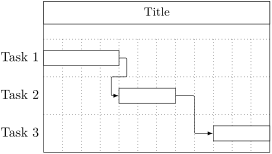
The \ganttlink \ganttlink macro connects two elements, which are specified by their ⟨name⟩s. By default, chart elements are named automatically: The first one receives the name elem0, the second one is called elem1 and so on. However, the name key allows you to assign a name to each chart element.
\begin{ganttchart}[
    vgrid,
    hgrid
  ]{1}{12}
  \gantttitle{Title}{12} \\
  \ganttbar{Task 1}{1}{4} \\
  \ganttbar{Task 2}{5}{7} \\
  \ganttbar{Task 3}{10}{12}
  \ganttlink{elem0}{elem1}
  \ganttlink{elem1}{elem2}
\end{ganttchart}
\begin{ganttchart}[
    vgrid,
    hgrid
  ]{1}{12}
  \gantttitle{Title}{12} \\
  \ganttbar[name=b1]%
    {Task 1}{1}{4} \\
  \ganttbar[name=b2]%
    {Task 2}{5}{7} \\
  \ganttbar[name=xyz]%
    {Task 3}{10}{12}
  \ganttlink{b1}{b2}
  \ganttlink{b2}{xyz}
\end{ganttchart}
-
/pgfgantt/link /.style=⟨style⟩-latex, rounded corners=1pt 
Sets the appearance of the link.
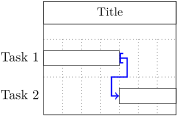
\begin{ganttchart}[
    vgrid,
    hgrid,
    link/.style={[-to, line width=1pt, blue}
  ]{1}{7}
  \gantttitle{Title}{7} \\
  \ganttbar{Task 1}{1}{4} \\
  \ganttbar{Task 2}{5}{7}
  \ganttlink{elem0}{elem1}
\end{ganttchart}
-
/pgfgantt/link type =⟨type⟩auto 
-
1. Automatic links are arrow-like. As you can see from the examples above, they consist of three segments (two horizontal, one vertical) if their start and end time slots are sufficiently separated. Otherwise, they comprise five segments (three horizontal, two vertical). Three keys further modify the appearance of automatic links:
-
/pgfgantt/link mid =⟨factor⟩0.5 
-
/pgfgantt/link bulge =⟨factor⟩0.4 
-
/pgfgantt/link tolerance =⟨factor⟩0.6 
Changes the position of the single vertical segment (in three-part links) or of the middle horizontal segment (in five-part links). By default, these segments are horizontally centered between the left and the right vertical segment, or vertically centered between the upper and the lower horizontal segment, respectively.
In five-part links, the upper and lower vertical segments are shifted along the \(x\)-axis by \(+\)⟨factor⟩ and \(-\)⟨factor⟩, respectively.
Decides whether pgfgantt draws a five- or a three-part link. If the true \(x\)-coordinates of the link start and end differ by at least ⟨factor⟩ (this is the case for the second link in the example below), the package draws a five-part link.
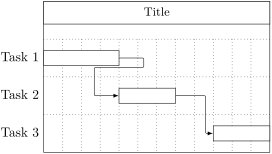
\begin{ganttchart}[vgrid, hgrid, link mid=.25, link bulge=1.3]{1}{12} \gantttitle{Title}{12} \\ \ganttbar{Task 1}{1}{4} \\ \ganttbar{Task 2}{5}{7} \\ \ganttbar{Task 3}{10}{12} \ganttlink{elem0}{elem1} \ganttlink[link mid=.8]{elem1}{elem2} \end{ganttchart} -
-
2. Straight links are only meant for connecting two bars in order to establish start-to-finish relations (s-f), start-to-start relations (s-s) etc. Their ⟨type⟩ identifiers are reminiscent of the syntax for specifying arrow tips in TikZ: Each identifier is composed of two letters separated by a hyphen.
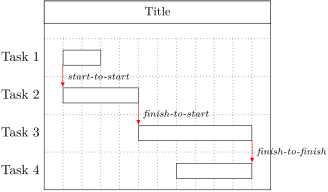
\begin{ganttchart}[ vgrid, hgrid, link/.style={-latex, draw=red, fill=red} ]{1}{12} \gantttitle{Title}{12} \\ \ganttbar{Task 1}{2}{3} \\ \ganttbar{Task 2}{2}{5} \\ \ganttbar{Task 3}{6}{11} \\ \ganttbar{Task 4}{8}{11} \ganttlink[link type=s-s]{elem0}{elem1} \ganttlink[link type=f-s]{elem1}{elem2} \ganttlink[link type=f-f]{elem2}{elem3} \end{ganttchart} -
3. Custom links allow you to define completely new link types. Strictly speaking, automatic and straight links are predefined custom links whose code supports the keys mentioned above (section 3.11 presents the TikZ code of these links).
For instance, pgfgantt provides one additional link type, dr (short for “down-right”). This type is convenient for connecting inline-labeled bars if the label of the start bar protrudes from its right border.
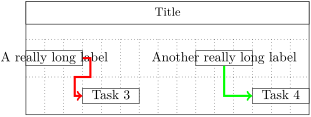
\begin{ganttchart}[
    vgrid,
    hgrid,
    inline,
    link/.style={->, ultra thick}
  ]{1}{15}
  \gantttitle{Title}{15} \\
  \ganttbar{A really long label}{1}{3}
  \ganttbar{Another really long label}{10}{12} \\
  \ganttbar{Task 3}{4}{6}
  \ganttbar{Task 4}{13}{15}
  \ganttlink[link/.append style=red]{elem0}{elem2}
  \ganttlink[link/.append style=green, link type=dr]{elem1}{elem3}
\end{ganttchart}
The following macro creates new link types:
\newganttlinktype`\marg{type}\marg{TikZ code}'\newganttlinktype It defines a new link ⟨type⟩ which is drawn by the given ⟨TikZ code⟩. When you write this code, you do not have to know the final absolute coordinates of each link type instance. On the contrary, several commands that are only available in the second argument of \newganttlinktype help you to design generic link types:
-
• First, you have to choose the border points of the chart elements the link will connect. For this purpose, \ganttsetstartanchor \ganttsetstartanchor{⟨anchor⟩} and \ganttsetendanchor \ganttsetendanchor{⟨anchor⟩} select an ⟨anchor⟩ of the start and end element, respectively. See the figures in section 2.7.5 for possible ⟨anchor⟩s of the default chart element shapes. You may specify a certain ⟨fraction⟩ for anchors like on top by \ganttsetstartanchor{on top=⟨fraction⟩}.
pgfgantt sets the default anchors to \ganttsetstartanchor{east} and \ganttsetendanchor{west}, so you even may omit these two commands.
-
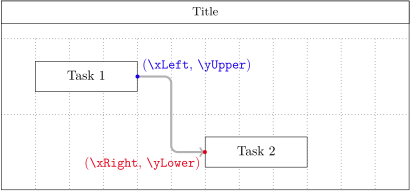
• The two macro pairs \xLeft \xLeft/\yUpper \yUpper and \xRight \xRight/\yLower \yLower provide the \(x\)- and \(y\)-coordinates of the link start and end points, respectively.
-
• \ganttlinklabel \ganttlinklabel contains the label that you may assign to each link type via \setganttlinklabel or the link label key (see below).
-
• You can access any values stored in the package’s ⟨key⟩s with the macro \ganttvalueof \ganttvalueof{⟨key⟩}.
-
• Remember that you can use the style /pgfgantt/link to ensure a uniform appearance of all your link types.
-
Link types fall into several categories:
\newganttlinktypealias`\marg{new type}\marg{existing type}'
\newganttlinktypealias \newganttlinktypealias lets a ⟨new type⟩ equal an ⟨existing type⟩, also copying any label that has been set for the ⟨existing type⟩.
\setganttlinklabel`\marg{type}\marg{label}'
\setganttlinklabel \setganttlinklabel sets a ⟨label⟩ for the given link ⟨type⟩. In the following example, note how sta-to-sta and s-s share a common label, while we change the label of fin-to-fin.
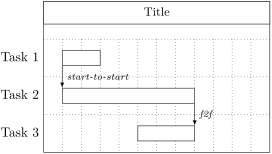
\newganttlinktypealias{sta-to-sta}{s-s}
\newganttlinktypealias{fin-to-fin}{f-f}
\setganttlinklabel{fin-to-fin}{f2f}

\begin{ganttchart}[vgrid, hgrid]{1}{12}
  \gantttitle{Title}{12} \\
  \ganttbar{Task 1}{2}{3} \\
  \ganttbar{Task 2}{2}{8} \\
  \ganttbar{Task 3}{6}{8}
  \ganttlink[link type=sta-to-sta]{elem0}{elem1}
  \ganttlink[link type=fin-to-fin]{elem1}{elem2}
\end{ganttchart}
Let’s put it all together and devise two new link types. Firstly, zigzag connects the lower right corner of the start element and the upper left corner of the end element with a thick, cyan line decorated by a zigzag pattern.
\usetikzlibrary{decorations.pathmorphing}

\newganttlinktype{zigzag}{
  \ganttsetstartanchor{on right=1}
  \ganttsetendanchor{on left=0}
  \draw [decoration=zigzag, decorate, thick, cyan]
    (\xLeft, \yUpper) --
    (\xRight, \yLower);
}

\begin{ganttchart}[vgrid, hgrid]{1}{12}
  \gantttitle{Title}{12} \\
  \ganttbar{Task 1}{2}{3} \\
  \ganttbar{Task 2}{7}{12}
  \ganttlink[link type=zigzag]{elem0}{elem1}
\end{ganttchart}
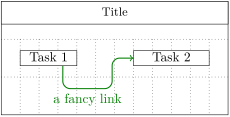
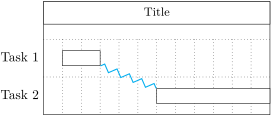 Secondly, drur (short for down-right-up-right) draws a labelled arrow in the default style link. The link starts at the bottom of the first element and connects to the left border of the second one. In addition, the known keys link mid and link bulge decide where the line going up is positioned and how far the first line going right is below the start coordinate, respectively.
\newganttlinktype{drur}{
  \ganttsetstartanchor{on bottom=0.75}
  \ganttsetendanchor{on left}
  \draw [/pgfgantt/link]
    % first segment (down)
    (\xLeft, \yUpper) --
    % second segment (right)
    (\xLeft, \yUpper -
      \ganttvalueof{link bulge} * \ganttvalueof{y unit chart}) --
    % link label
    node [pos=.5, /pgfgantt/link label anchor] {\ganttlinklabel}
    % third segment (up)
    ($(\xLeft,
      \yUpper -
        \ganttvalueof{link bulge} * \ganttvalueof{y unit chart})!%
      \ganttvalueof{link mid}!%
      (\xRight,
      \yUpper -
        \ganttvalueof{link bulge} * \ganttvalueof{y unit chart})$) --
    % last segment (right again)
    ($(\xLeft, \yLower)!%
      \ganttvalueof{link mid}!%
      (\xRight, \yLower)$) --
    (\xRight, \yLower);
}
\setganttlinklabel{drur}{a fancy link}

\begin{ganttchart}[
    vgrid,
    hgrid,
    link/.style={thick, ->, green!50!black, rounded corners=2mm},
    link label anchor/.style=below,
    link mid=.7, link bulge=.6
  ]{1}12}
  \gantttitle{Title}{12} \\
  \ganttbar[inline]{Task 1}{2}{4}
  \ganttbar[inline]{Task 2}{8}{11} \\
  \ganttlink[link type=drur]{elem0}{elem1}
\end{ganttchart}
 (Please remove the comments if you copy the code above – they will confuse TikZ and generate tons of errors.)
-
/pgfgantt/link label =⟨label⟩(empty) 
-
/pgfgantt/link label font =⟨font commands⟩\scriptsize\itshape 
-
/pgfgantt/link label node /.style=⟨options⟩anchor=west, font=\ganttvalueof{link label font} 
The link label key locally overrides any label specified by \setganttlinklabel. The ⟨font commands⟩ and ⟨options⟩ are applied to the link label node. By default, the label appears to the right of the straight link’s center.
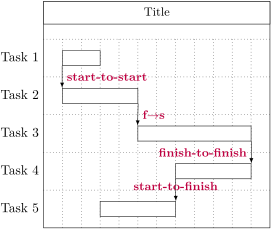
\begin{ganttchart}[
    vgrid,
    hgrid,
    link label font=\small\bfseries\color{purple}
  ]{1}{12}
  \gantttitle{Title}{12} \\
  \ganttbar{Task 1}{2}{3} \\
  \ganttbar{Task 2}{2}{5} \\
  \ganttbar{Task 3}{6}{11} \\
  \ganttbar{Task 4}{8}{11} \\
  \ganttbar{Task 5}{4}{7}
  \ganttlink[link type=s-s]{elem0}{elem1}
  \ganttlink[link type=f-s, link label={f$\to$s}]{elem1}{elem2}
  \ganttlink[
    link type=f-f,
    link label node/.append style={anchor=east}
  ]{elem2}{elem3}
  \ganttlink[
    link type=s-f,
    link label node/.append style={anchor=base}
  ]{elem3}{elem4}
\end{ganttchart}
2.10Style Examples
The first example plays around with colors and notably uses equal \(x\)- and \(y\)-vectors.
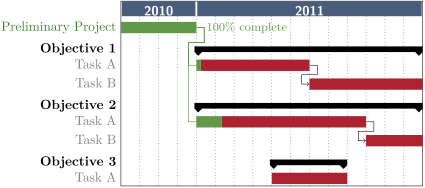
\begin{ganttchart}[
    y unit title=0.4cm,
    y unit chart=0.5cm,
    vgrid,
    time slot format=isodate-yearmonth,
    time slot unit=month,
    title/.append style={draw=none, fill=RoyalBlue!50!black},
    title label font=\sffamily\bfseries\color{white},
    title label node/.append style={below=-1.6ex},
    title left shift=.05,
    title right shift=-.05,
    title height=1,
    bar/.append style={draw=none, fill=OliveGreen!75},
    bar height=.6,
    bar label font=\normalsize\color{black!50},
    group right shift=0,
    group top shift=.6,
    group height=.3,
    group peaks height=.2,
    bar incomplete/.append style={fill=Maroon}
  ]{2010-09}{2011-12}
  \gantttitlecalendar{year} \\
  \ganttbar[
    progress=100,
    bar progress label font=\small\color{OliveGreen!75},
    bar progress label node/.append style={right=4pt},
    bar label font=\normalsize\color{OliveGreen},
    name=pp
  ]{Preliminary Project}{2010-09}{2010-12} \\
  \ganttset{progress label text={}, link/.style={black, -to}}
  \ganttgroup{Objective 1}{2011-01}{2011-12} \\
  \ganttbar[progress=4, name=T1A]{Task A}{2011-01}{2011-06} \\
  \ganttlinkedbar[progress=0]{Task B}{2011-07}{2011-12} \\
  \ganttgroup{Objective 2}{2011-01}{2011-12} \\
  \ganttbar[progress=15, name=T2A]{Task A}{2011-01}{2011-09} \\
  \ganttlinkedbar[progress=0]{Task B}{2011-10}{2011-12} \\
  \ganttgroup{Objective 3}{2011-05}{2011-08} \\
  \ganttbar[progress=0]{Task A}{2011-05}{2011-08}
  \ganttset{link/.style={OliveGreen}}
  \ganttlink[link mid=.4]{pp}{T1A}
  \ganttlink[link mid=.159]{pp}{T2A}
\end{ganttchart}
The second example demonstrates that pgfgantt is really flexible: Even an appearance quite different from the standard layout is possible. (More precisely, the code below tries to reproduce the Gantt chart from the English Wikipedia site, see https://en.wikipedia.org/wiki/Gantt_chart.)
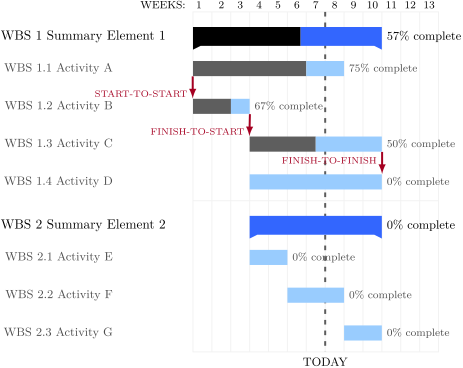
\definecolor{barblue}{RGB}{153,204,254}
\definecolor{groupblue}{RGB}{51,102,254}
\definecolor{linkred}{RGB}{165,0,33}
\renewcommand\sfdefault{phv}
\renewcommand\mddefault{mc}
\renewcommand\bfdefault{bc}
\setganttlinklabel{s-s}{START-TO-START}
\setganttlinklabel{f-s}{FINISH-TO-START}
\setganttlinklabel{f-f}{FINISH-TO-FINISH}
\sffamily
\begin{ganttchart}[
    canvas/.append style={fill=none, draw=black!5, line width=.75pt},
    hgrid style/.style={draw=black!5, line width=.75pt},
    vgrid={*1{draw=black!5, line width=.75pt}},
    today=7,
    today rule/.style={
       draw=black!64,
       dash pattern=on 3.5pt off 4.5pt,
       line width=1.5pt
    },
    today label font=\small\bfseries,
    title/.style={draw=none, fill=none},
    title label font=\bfseries\footnotesize,
    title label node/.append style={below=7pt},
    include title in canvas=false,
    bar label font=\mdseries\small\color{black!70},
    bar label node/.append style={left=2cm},
    bar/.append style={draw=none, fill=black!63},
    bar incomplete/.append style={fill=barblue},
    bar progress label font=\mdseries\footnotesize\color{black!70},
    group incomplete/.append style={fill=groupblue},
    group left shift=0,
    group right shift=0,
    group height=.5,
    group peaks tip position=0,
    group label node/.append style={left=.6cm},
    group progress label font=\bfseries\small,
    link/.style={-latex, line width=1.5pt, linkred},
    link label font=\scriptsize\bfseries,
    link label node/.append style={below left=-2pt and 0pt}
  ]{1}{13}
  \gantttitle[
    title label node/.append style={below left=7pt and -3pt}
  ]{WEEKS:\quad1}{1}
  \gantttitlelist{2,...,13}{1} \\
  \ganttgroup[progress=57]{WBS 1 Summary Element 1}{1}{10} \\
  \ganttbar[
    progress=75,
    name=WBS1A
  ]{\textbf{WBS 1.1} Activity A}{1}{8} \\
  \ganttbar[
    progress=67,
    name=WBS1B
  ]{\textbf{WBS 1.2} Activity B}{1}{3} \\
  \ganttbar[
    progress=50,
    name=WBS1C
  ]{\textbf{WBS 1.3} Activity C}{4}{10} \\
  \ganttbar[
    progress=0,
    name=WBS1D
  ]{\textbf{WBS 1.4} Activity D}{4}{10} \\[grid]
  \ganttgroup[progress=0]{WBS 2 Summary Element 2}{4}{10} \\
  \ganttbar[progress=0]{\textbf{WBS 2.1} Activity E}{4}{5} \\
  \ganttbar[progress=0]{\textbf{WBS 2.2} Activity F}{6}{8} \\
  \ganttbar[progress=0]{\textbf{WBS 2.3} Activity G}{9}{10}
  \ganttlink[link type=s-s]{WBS1A}{WBS1B}
  \ganttlink[link type=f-s]{WBS1B}{WBS1C}
  \ganttlink[
    link type=f-f,
    link label node/.append style=left
  ]{WBS1C}{WBS1D}
\end{ganttchart}