2Controlling the appearance of diagrams¶
This section describes a number of customization keys defined by this package. All keys are located in the path /tikz/commutative diagrams. Options passed to {tikzcd} or \arrow are searched for in that path, and, if not found there, in /tikz. To set options globally, it is convenient to use the following command.
-
\tikzcdset{⟨options⟩} ¶
Executes ⟨options⟩ in the path /tikz/commutative diagrams.
Besides the keys described in this manual, numerous TikZ parameters can affect the appearance of a diagram. However, only a few of them (namely those appearing in every diagram, every cell, every arrow, and every label below) are reinitialized when {tikzcd} is called. This means that modifying a certain TikZ parameter globally may or may not affect the output of {tikzcd}.
We also point out that besides the options and styles provided by this package, several keys defined by TikZ are useful for arrows. Some examples are dashed, dotted, and its relatives, line width=⟨dimension⟩, color=⟨color⟩, bend right, bend left, in=⟨angle⟩, out=⟨angle⟩, loop, etc. See the pgf manual [2, line styles and to paths]. Likewise, TikZ provides several keys that are useful for labels, such as above, below, left, right, swap (which makes the label be placed on the right side of the arrow, relative to its direction), sloped, pos=⟨fraction⟩, near start, near end, inner sep=⟨dimension⟩, font=⟨font command⟩, text width=⟨dimension⟩, etc. See the pgf manual [2, nodes, esp. label placement].
2.1General options¶
-
/tikz/commutative diagrams/every diagram(style, no value) ¶
-
row sep=normal,
column sep=normal,
/tikz/baseline=0pt
This style is applied to every {tikzcd} environment. Initially, it contains the following:
The baseline=0pt setting is used to make equation numbers be placed correctly (as an exception, one-row diagrams are anchored at their matrix base, which is exactly what you want).
-
/tikz/commutative diagrams/diagrams=⟨options⟩(no default) ¶
This key appends ⟨options⟩ to the style every diagram.
-
/tikz/commutative diagrams/every matrix(style, no value) ¶
-
/tikz/inner sep=0pt
This style is applied to the TikZ matrix created internally by {tikzcd}. Initially, it contains the following:
-
/tikz/commutative diagrams/every cell(style, no value) ¶
-
/tikz/shape=asymmetrical rectangle,
/tikz/inner xsep=1ex,
/tikz/inner ysep=0.85ex
This style is applied to every TikZ matrix cell created by {tikzcd}. Initially, it contains the following:
The asymmetrical rectangle shape is described in §4.1. The inner xsep, inner ysep options determine the spacing between a diagram entry and any arrows reaching it.
-
/tikz/commutative diagrams/cells=⟨options⟩(no default) ¶
This key appends ⟨options⟩ to the style every cell.
-
/tikz/commutative diagrams/row sep=⟨size⟩(no default) ¶
-
/tikz/commutative diagrams/row sep/⟨size⟩
This key acts as a frontend to TikZ’s /tikz/row sep key. If the key
stores a ⟨value⟩, then it is read and /tikz/row sep=⟨value⟩ is set. If the key above is not initialized, then ⟨size⟩ is presumed to be a dimension, and /tikz/row sep=⟨size⟩ is set.
The initially available sizes, and their values, are the following:
| tiny | small | scriptsize | normal | large | huge |
| 0.45 em | 0.9 em | 1.35 em | 1.8 em | 2.7 em | 3.6 em |
Notice that setting, say, row sep=1cm globally with \tikzcdset will have no effect, since the row sep option is re-set at the beginning of each diagram. To make all diagrams have row sep equal to 1 cm, you can modify the meaning of normal by saying
-
\tikzcdset{row sep/normal=1cm}.
You can also create new sizes, but note that pgf requires new keys to be initialized explicitly. For example, to create a size my size, meaning 1 ex, you should use
-
\tikzcdset{row sep/my size/.initial=1ex}.
-
/tikz/commutative diagrams/column sep=⟨size⟩(no default) ¶
This works analogously to the row sep key above. The sizes available initially are the following:
| tiny | small | scriptsize | normal | large | huge |
| 0.6 em | 1.2 em | 1.8 em | 2.4 em | 3.6 em | 4.8 em |
-
/tikz/commutative diagrams/sep=⟨size⟩(no default) ¶
This key sets row sep=⟨size⟩, column sep=⟨size⟩.
In the examples below, the triangular diagrams would look too wide or too tall if the column or row separation were not set appropriately.


The discussion of matrix spacing in the pgf manual [Tantau] contains further details on the spacing of matrix cells.
-
/tikz/commutative diagrams/cramped(style, no value) ¶
By default, a generous amount of white space is added around diagram cells, which is appropriate for large, displayed diagrams. The present style removes some of this extra white space, and is intended for smaller diagrams that should blend with the surrounding text, or very wide material that wouldn’t fit the page otherwise.
The picture below shows the (somewhat subtle) difference between the cramped and the non-cramped styles.


Keep in mind that while there are some legitimate uses for {tikzcd} diagrams on inline formulas, standard LaTeX constructs such as \overset and \xrigthtarrow are often sufficient and should be preferred.
-
/tikz/commutative diagrams/math mode=⟨boolean⟩ (default true) ¶
This key determines whether or not the contents of a diagram are typeset in math mode. If set globally or diagram-wise, it affects both the diagram entries and arrow labels. If used with \arrow, it affects only its labels.
-
/tikz/commutative diagrams/background color=⟨color⟩ (no default, initially white) ¶
This key stores the name of a color, and is read by styles that fill the background, such as description and crossing over. It does not cause the background of diagrams to be filled.
2.2Global options for arrows¶
-
/tikz/commutative diagrams/every arrow(style, no value) ¶
-
/tikz/draw,
/tikz/line width=rule_thickness,
rightarrow
This style is applied to every \arrow. Initially, it contains the following:
-
/tikz/commutative diagrams/arrows=⟨options⟩(no default) ¶
This key appends ⟨options⟩ to the style every arrow.
-
/tikz/commutative diagrams/arrow style=⟨style⟩(no default) ¶
- Latin Modern
-
A small variant of the initial settings, intended for documents using the Latin Modern font at any size.
- math font
-
This setting uses the Glyph meta arrow tip described in §4.4.
- tikz
-
This setting uses the arrow tips defined in TikZ’s arrows.meta library. It honors the option /tikz/>.
This key determines which collection of arrow tips is used by the arrow tip selection styles listed in §1.3. The initial setting is suitable for documents using the Computer Modern font at any size. The available choices for ⟨style⟩ are:
This key is usually invoked in the document preamble, and should be set only once.
If you are using a font different from Computer Modern or Latin Modern, you may find the best results by selecting the math font style. As detailed in §4.4, this is not guaranteed to work perfectly with all fonts, but gives good results in many cases. If the math font style gives unsatisfactory results, you can try selecting the tikz style, and setting /tikz/> to the value that best matches your font (among those shown in [2, arrow tips]).

2.3Absolute placement of arrows¶
The usual behavior of \arrow is to produce an arrow starting at the diagram entry where the command appears, and ending at an entry whose location is specified relative to that. The following keys override this behavior, allowing source and target to be selected explicitly.
-
/tikz/commutative diagrams/from=⟨argument⟩(no default) ¶
If ⟨argument⟩ is of the form ⟨row number⟩-⟨column number⟩, or if it is a string of characters r, l, d, u, this key sets the arrow source to be the corresponding cell in the diagram matrix. Otherwise, it assumes the argument is the name of a node and sets the arrow source to ⟨argument⟩.
-
/tikz/commutative diagrams/to=⟨argument⟩(no default) ¶
Similar to from, but refers to the arrow target.
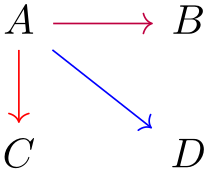
Recall that it is possible to give a specific entry of a TikZ matrix a name by using the |[⟨options⟩]| syntax, as done for entry \(C\) in the example below. You must be careful not to create nodes whose name contains only the characters l, r, u, d if you want to refer to them using from or to. The following illustrates several different uses of these keys.
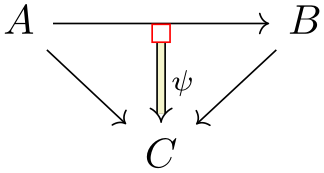
In the next examples, empty labels are used to create nodes for later reference. The draw=red option is used to show where these empty nodes are located, but of course you want to remove that when using this technique.

2.4Phantom arrows¶
Sometimes it is necessary to insert a symbol outside the grid subjacent to the diagram. The easiest way to achieve this is as a label to an invisible arrow.
-
/tikz/commutative diagrams/phantom(style, no value) ¶
Creates an invisible arrow. Labels to this arrow are not invisible. They will be anchored at their center and typeset in full size (i.e., with \textstyle). To get smaller labels, as in ordinary arrows, use the \scriptstyle command.
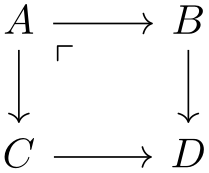
In the picture below, the arrow containing the phantom option goes from \(A\) to \(D\), and the \ulcorner symbol (\(\ulcorner \)) is inserted closer to the starting point \(A\).
2.5Fine-tuning the placement of arrows¶
-
/tikz/commutative diagrams/shift left=⟨dimension⟩ (default 0.56ex) ¶
Shifts arrows by ⟨dimension⟩ to the left, relative to the arrow direction. A dimensionless argument causes that multiple of the default value to be used.
-
/tikz/commutative diagrams/shift right=⟨dimension⟩ (default 1) ¶
A shortcut to shift left=-⟨dimension⟩.

\begin{tikzcd}

  A \arrow[r, red, shift left=1.5ex] \arrow[r]

    \arrow[dr, blue, shift right=1.5ex] \arrow[dr]

    & B \arrow[d, purple, shift left=1.5ex] \arrow[d]\\

    & C

\end{tikzcd}
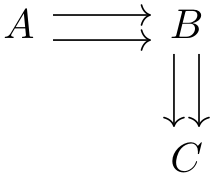
The default values of shift left and shift right are appropriate for a pair of parallel arrows, and dimensionless arguments are useful to create sets of multiple parallel arrows.

\begin{tikzcd}

  A \arrow[r]

    & B \arrow[r, shift left]

        \arrow[r, shift right]

      & C \arrow[r]

          \arrow[r, shift left=2]

          \arrow[r, shift right=2]

        & \cdots

\end{tikzcd}
-
/tikz/commutative diagrams/shift={⟨coordinate⟩}(no default) ¶
Shifts arrows by ⟨coordinate⟩.
-
/tikz/commutative diagrams/xshift=⟨dimension⟩(no default) ¶
Shifts arrows right by ⟨dimension⟩.
-
/tikz/commutative diagrams/yshift=⟨dimension⟩(no default) ¶
Shifts arrows up by ⟨dimension⟩.
-
/tikz/commutative diagrams/start anchor={[⟨coordinate transformations⟩]⟨anchor⟩}(no default) ¶
This key specifies at which anchor of the source node the arrow should start. Optionally, additional coordinate transformations can be supplied. An empty ⟨anchor⟩ argument causes no anchor to be specified, which is the usual behavior.
-
/tikz/commutative diagrams/end anchor={[⟨coordinate transformations⟩]⟨anchor⟩}(no default) ¶
This key works analogously, but refers to the target node of the arrow.
See the picture on §4.1 for some of the possible values for ⟨anchor⟩.

\begin{tikzcd}[cells={nodes={draw=gray}}]

  A \arrow[r, black]

    \arrow[r, blue, end anchor=north east]

    \arrow[r,

           red,

           start anchor={[xshift=-1ex]},

           end anchor={[yshift=2ex]north east}]

    & B

\end{tikzcd}
-
/tikz/commutative diagrams/shorten=⟨dimension⟩(no default) ¶
This key shortens each end of the arrow by ⟨dimension⟩.

\begin{       tikzcd}

  A        \arrow[r,            shift left]

        \ar[r,         shorten=2mm,             shift right]

    & B

\end{       tikzcd}
Note that the ends of an arrow can be shortened individually using TikZ’s built-in keys shorten < and shorten >.
2.6Three-dimensional diagrams¶

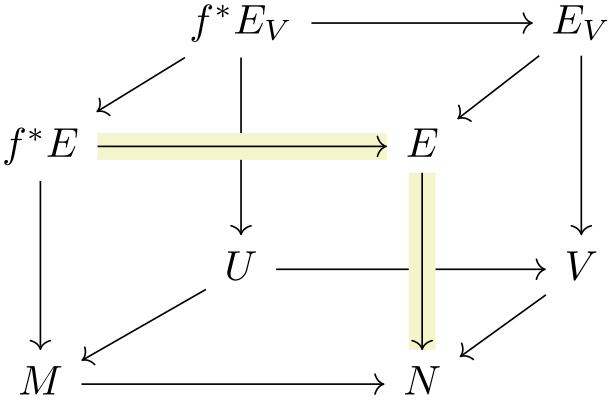
Note that, since arrows are drawn in the order they are read, it may be necessary to defer the drawing of certain arrows to achieve the desired result. This can be done using the from key, as shown in the following picture.
-
/tikz/commutative diagrams/crossing over clearance=⟨dimension⟩ (no default, initially 1.5ex) ¶
This key specifies the width of the background-colored line drawn under a crossing over arrow.
2.7Options for labels¶
-
/tikz/commutative diagrams/every label(style, no value) ¶
-
/tikz/auto,
/tikz/font=⟨something⟩,
/tikz/inner sep=0.5ex
This style is applied to every label produced with \arrow. It is initially set to
where ⟨something⟩ is something that makes \scriptstyle be applied to labels in math mode.
The key /tikz/auto makes the label be placed on the left side of the arrow, relative to its direction. The key /tikz/inner sep controls the distance between a label and the corresponding arrow.
-
/tikz/commutative diagrams/labels=⟨options⟩(no default) ¶
This key appends ⟨options⟩ to every label.
-
/tikz/commutative diagrams/marking(style, no value) ¶
This style causes the label to be placed over the arrow. It is useful to decorate arrows using ordinary math symbols.